
This guide helps your team get more value from TurboHelp's Team tools. Use it to understand the feature, configure it correctly, and know what to check before relying on it in your daily support workflow.
At a Glance
Use this area to manage agents, groups, availability, workload, and team visibility.
Keep roles and group assignments intentional so each teammate sees the right work.
Review performance and notification settings whenever your support process changes.
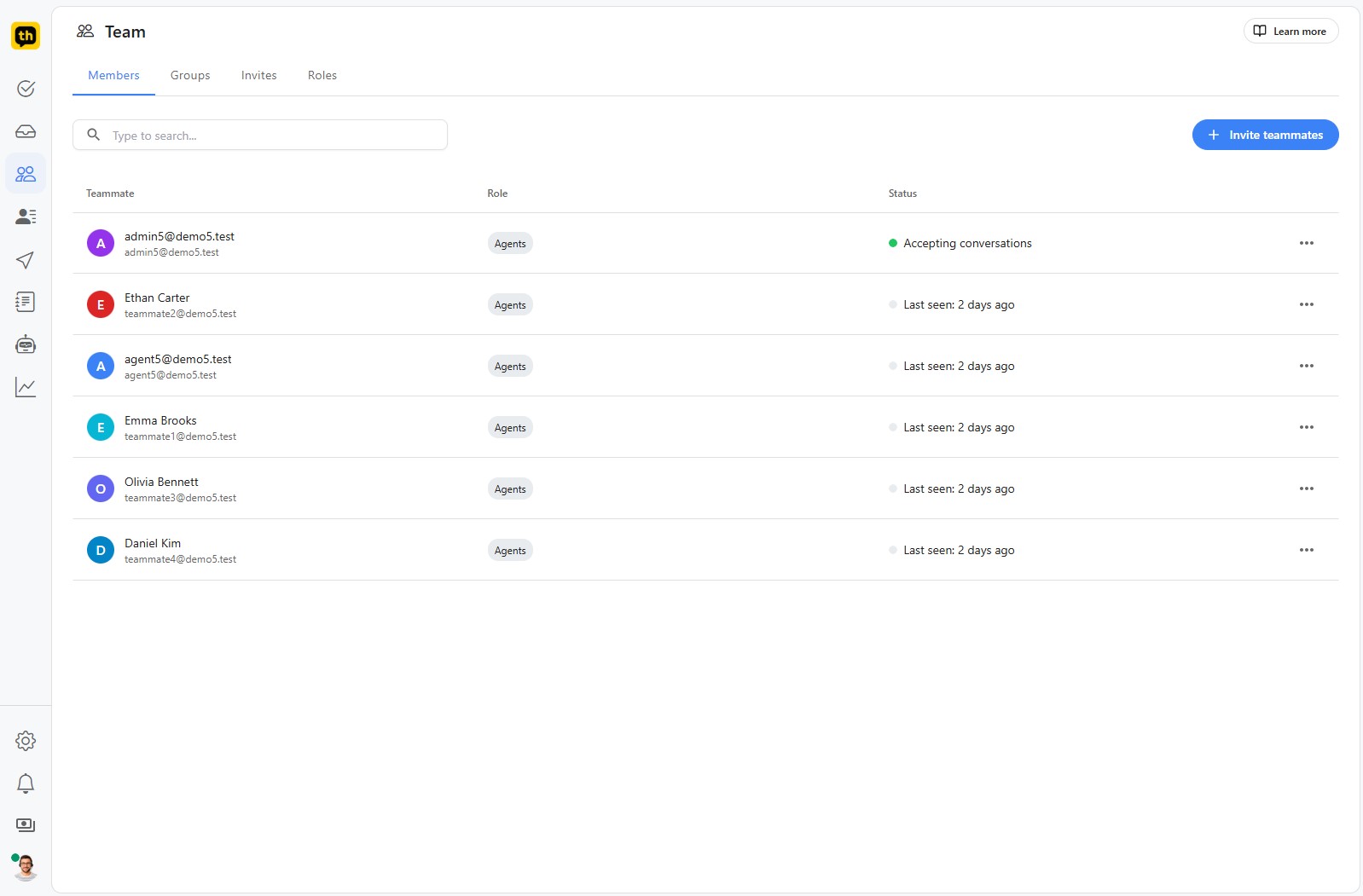
Here is a general overview of the Team page in TurboHelp. This page is your central hub for managing the people who have access to your support system.
The Team page is organized into three main sections: Members, Groups, and Invites.
Members
The Members tab displays a complete list of all the teammates who have been added to your helpdesk. For each teammate, you can quickly see:
Teammate: Their name and email address.
Role: Their assigned role, such as "Agent."
Status: Their current availability, indicating if they are Online and Accepting conversations or when they were last active (e.g., "Last seen: 12 hours ago").
Options: Click on the options button to view agent profile and report about their performance or to suspend or delete the agent.
Groups
The Groups tab allows you to organize your agents into different teams. Creating groups is an effective way to manage conversation assignments and workflows. For example, you could create separate groups for your "Billing Department," "Technical Support," or "Sales Team." When a new conversation comes in, you can assign it to the appropriate group, ensuring the right people are notified.
Inviting Teammates
To add new agents to your helpdesk, simply click the + Invite teammates button located at the top right of the page. This will allow you to send an invitation to the new user's email address.
You can track the status of all pending invitations in the Invites tab. This is useful for seeing who has been invited but has not yet joined your helpdesk.
Best Practices
Grant the smallest role that lets each teammate do their job.
Use groups for real ownership boundaries such as Billing, Sales, or Technical Support.
Review workload, queues, and notifications after staffing or schedule changes.