
This guide helps your team get more value from TurboHelp's Conversations tools. Use it to understand the feature, configure it correctly, and know what to check before relying on it in your daily support workflow.
At a Glance
Use this feature to keep customer conversations organized and easy to act on.
Pair it with clear statuses, tags, and ownership rules so agents always know the next step.
Review the setup regularly as your support volume and team structure change.
Saved replies, also known as canned replies, are predefined message templates that your agents can quickly use to respond to common questions. Using them helps save time, ensure your messaging is consistent, and reduce errors in customer communication.
Creating a New Saved Reply
You can create replies for personal use or share them with your entire team or specific agent groups.
You can create a new reply from saved replies page in dashboard or admin area or from saved replies dialog in conversation page. When creating a new reply from conversations page, it will include current reply composer contents and attachments.
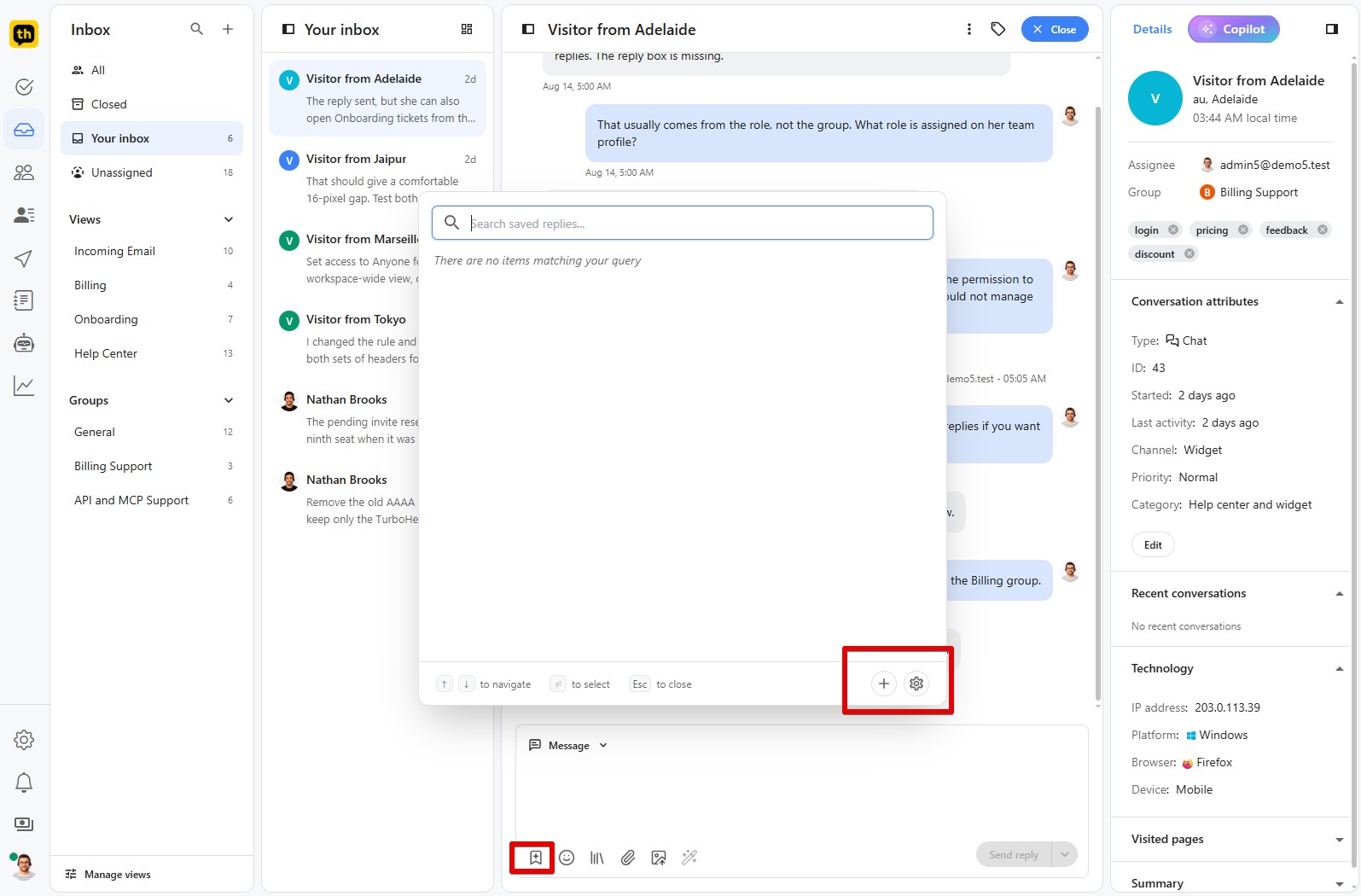
Follow these steps to configure your new reply:
Set Visibility: Choose whether the reply is Shared (visible to all agents) or Private (visible only to you).
Name: Give your reply a short, descriptive name so you can easily find it later (e.g., "Password Reset Instructions").
Group (Optional): If you want to limit the reply's visibility to a specific group of agents (like "Billing" or "Technical Support"), select a group from the dropdown menu.
Reply Text: Write the full body of the message you want to save. If creating from conversation page, it will already include reply composer text and attachments.
Tags (Optional): Add any tags you want to be automatically applied to a conversation whenever this reply is used. This is great for tracking and reporting purposes.
Save: Once you're finished, click the Save button.
Managing Your Saved Replies
The main Saved Replies page in admin area or dashboard gives you a complete overview of all the replies available in your helpdesk.
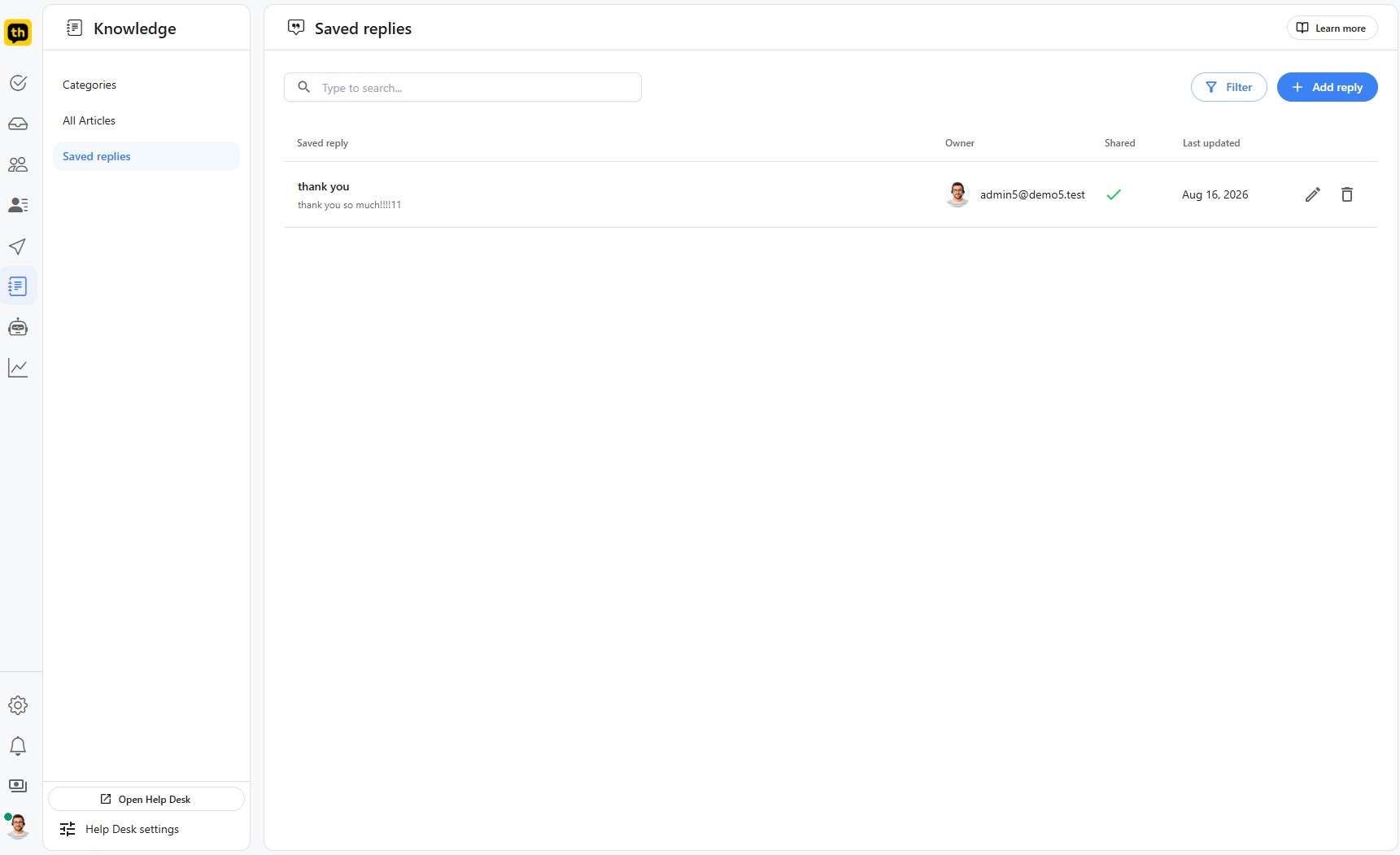
From this screen, you can perform several actions:
Search and Filter: Use the search bar at the top to quickly find a reply by its name or content. You can also click the Filter button to narrow down the list by owner or other criteria.
Edit a Reply: To make changes to an existing reply, click the pencil icon on the far right of that reply's row.
Delete a Reply: To permanently remove a reply, click the trash can icon on the far right.
Using Saved Replies in Conversations
Using your saved replies is simple and designed to speed up your workflow.
When you're replying to a customer conversation, use saved reply # button or ctrl+k shortcut to bring up a list of your available replies. Select the reply to insert it at the current cursor position in reply composer. This will also add any attachments and tags from saved reply to current conversation.
Best Practices
Name views, statuses, attributes, and saved replies in plain language your whole team understands.
Avoid creating too many overlapping filters; fewer, sharper workflows are easier to maintain.
Audit old conversations and stale views on a regular schedule.