
This guide helps your team get more value from TurboHelp's Team tools. Use it to understand the feature, configure it correctly, and know what to check before relying on it in your daily support workflow.
At a Glance
Use this area to manage agents, groups, availability, workload, and team visibility.
Keep roles and group assignments intentional so each teammate sees the right work.
Review performance and notification settings whenever your support process changes.
TurboHelp allows every agent to customize their own notification alerts to fit their personal workflow. This ensures you stay on top of customer interactions and team activities by receiving only the information that matters most to you, delivered in the way you prefer.
Your Notification Channels
As an agent, you can choose to receive alerts through three different channels. You can configure these personal settings at any time to find the combination that works best for you.
Email: Get notifications sent directly to your email inbox.
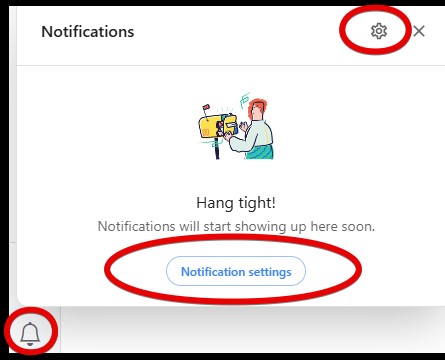
Browser (Push notifications): Receive real-time push notifications in your web browser. These alerts will also appear in the notifications panel, accessible by clicking the bell icon in the top navigation bar.
Slack: Integrate TurboHelp with your Slack workspace to receive your personal notifications directly within your team's channels.
Important: Outgoing emails need to be setup for email notifications to work properly.
Browser Push notifications
When "browser" channel checkbox is ticked, TurboHelp will send those notifications via browser. When you click that checkbox the first time, your browser will request permissions to send notifications, click "Allow". Notifications will appear in the top right corner of your screen on Mac, and the bottom right corner of the screen on Windows. Sometimes you might need to enable notifications from browser settings. Instructions on enabling/disabling notifications can be found at the links below for some of the more popular browsers.
On Windows, Chrome browser notifications in versions 68 and higher are sent through Windows Action Center. Make sure your Windows Notification & actions settings allow Chrome to send through here in addition to the Chrome settings.

Customizing Your Personal Notifications
Each agent has their own notification settings page, giving you granular control over which events trigger an alert for you personally. These settings are unique to your account and do not affect other agents on your team. You can configure your preferences by clicking bell icon next to your email address and then Notification settings.
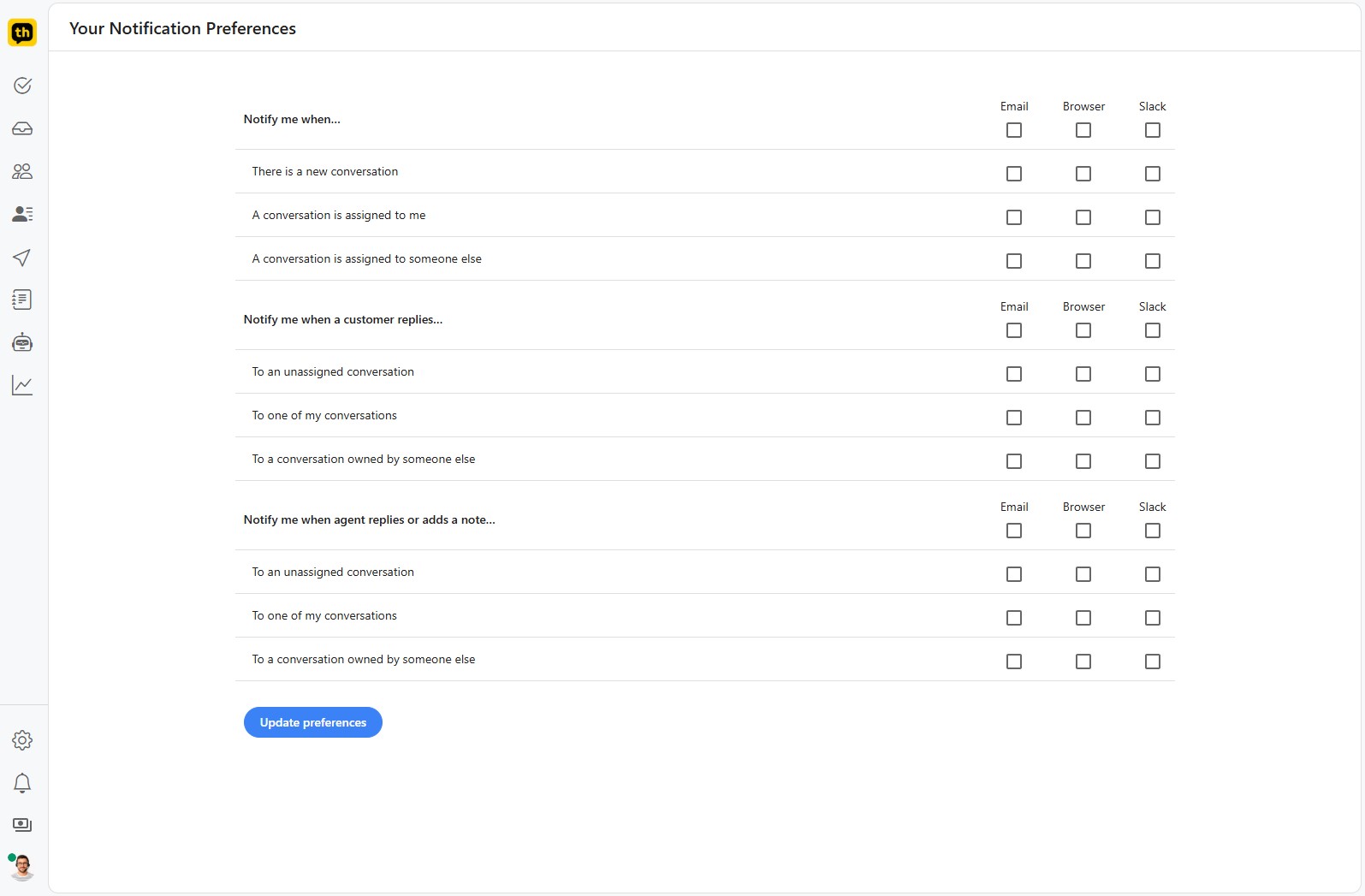
You can choose to be notified for the following categories of events:
General Conversation Events
When there is a new conversation.
When a conversation is assigned to you.
When a conversation is assigned to someone else.
Customer Replies
When a customer replies to an unassigned conversation.
When a customer replies to one of your conversations.
When a customer replies to a conversation owned by someone else.
Agent Actions
When an agent replies or adds a note to an unassigned conversation.
When an agent replies or adds a note to one of your conversations.
When an agent replies or adds a note to a conversation owned by someone else.
For each event, simply check the box for your preferred channel(s) and click Update preferences to save your changes.
Live In-App Alerts
In addition to your configurable notifications, TurboHelp provides instant alerts within the agent dashboard and live chat widget that apply to all users to ensure no real-time interaction is missed.
Sound Alerts: Agents and customers will automatically hear a distinct sound when a new message arrives in an active conversation or when a new conversation appears in the queue.
Visual Indicators: A red dot will appear next to any conversation in your list that has unseen messages, making it easy to spot what needs your attention at a glance.
Best Practices
Grant the smallest role that lets each teammate do their job.
Use groups for real ownership boundaries such as Billing, Sales, or Technical Support.
Review workload, queues, and notifications after staffing or schedule changes.