
This guide helps your team get more value from TurboHelp's Help Center tools. Use it to understand the feature, configure it correctly, and know what to check before relying on it in your daily support workflow.
At a Glance
Use the help center to turn repeat questions into self-service answers.
Keep articles clear, current, and connected to the workflows customers use most.
Review layout, search, and submission settings together so customers can find help quickly.
Help center allows you to build a comprehensive, self-service knowledge base for your customers. A well-organized help center empowers users to find answers to their questions quickly and on their own, reducing the number of support requests and improving overall customer satisfaction.
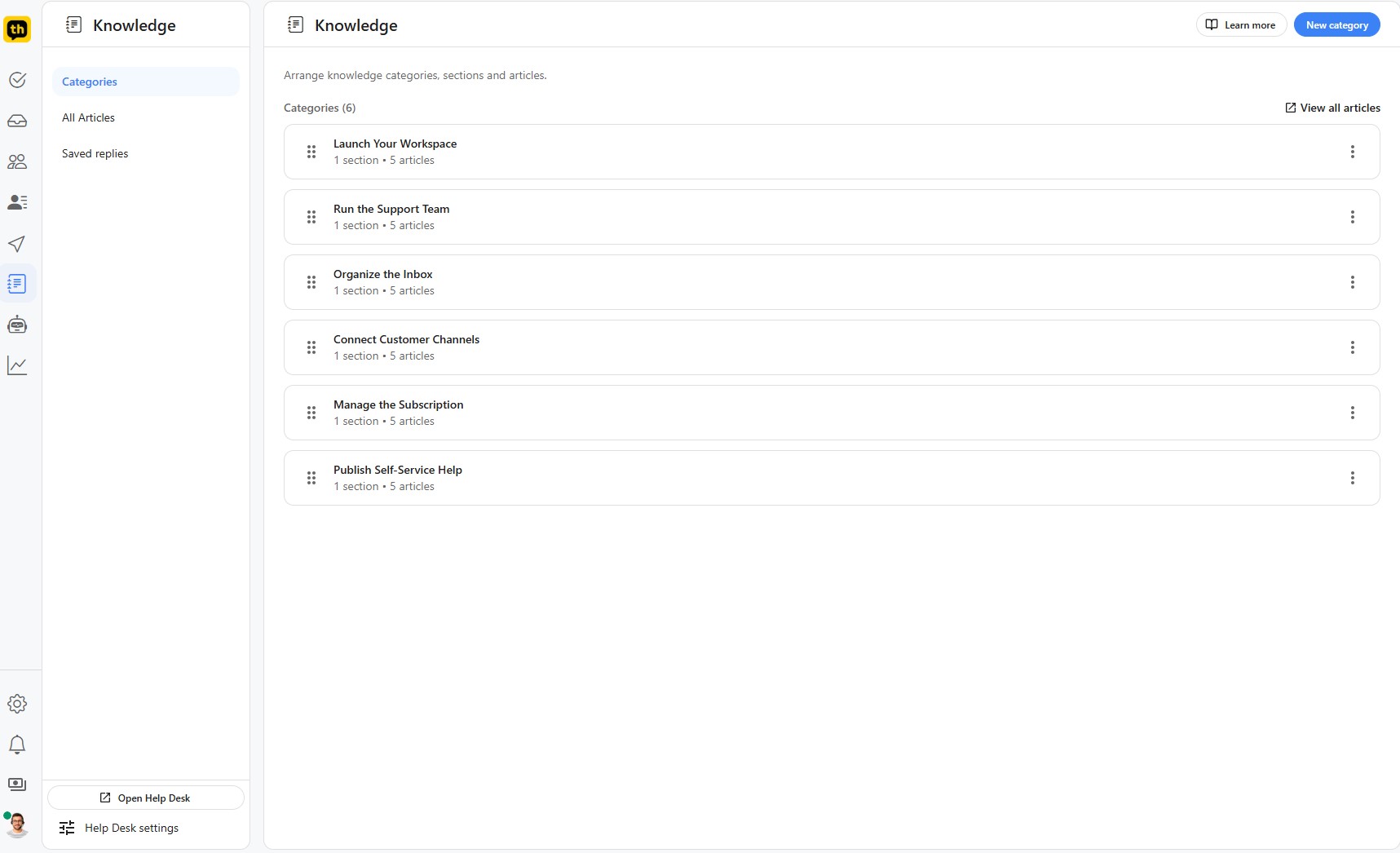
The Structure: Categories, Sections, and Articles
To keep your content neat and easy for users to navigate, the TurboHelp Help Center uses a simple three-level hierarchy.
Categories: These are the highest-level containers, used to group your content into broad subjects. For example, you might have categories like "Getting Started," "Billing & Payments," or "Advanced Features."
Sections: Within each category, you can create multiple sections to further organize related topics. For example, "Getting Started" category could contain sections like "Introduction," "Installation," and "Settings & Configuration."
Articles: These are the actual knowledge base documents that answer your customers' specific questions. An article can be a "how-to" guide, an FAQ, or a detailed explanation of a feature.
Tip: A single article can be attached to multiple categories and sections.
Managing Your Help Center
The Help center section in your TurboHelp admin panel provides all the tools you need to create and maintain your knowledge base.
Creating Content: You can start by creating a new category and then add sections to it using the New section button. Once a section is created, you can begin filling it with helpful articles.
Editing and Organizing: Keeping your content organized is simple. You can reorder sections at any time by using the drag-and-drop handle (the dotted icon on the left) or by clicking the options menu (•••) and selecting Send to top to quickly move a section to the first position. The same menu allows you to Edit a section's details.
Previewing: To see exactly how your content will appear to your customers, use the View in help center option. This allows you to check the layout and formatting from a user's perspective.
Deleting: If a section and its articles are no longer needed, you can permanently remove them using the Delete option from the menu.
These intuitive controls ensure you can build and manage a clean, effective, and up-to-date knowledge base for your customers.
Power Up with the AI Agent
Your help center does more than just sit and wait for users to find it. The content you write in your articles can be used directly by the TurboHelp AI Agent. When a customer asks a question in the support widget, the AI can instantly search your articles to find and deliver the most relevant answer, providing immediate support and freeing up your team.
Next Steps: Writing Articles and Customization
For more detailed guides on creating content and customizing the appearance of your help center, please see these articles:
Using the Article Editor: A deep dive into the tools available for writing and formatting your articles.
Customizing Help Center: Learn how to change your help center's look and behaviour.
Best Practices
Write article titles in the words customers would actually search for.
Update screenshots after UI changes so the article still matches the product.
Link related articles together once the final WordPress URLs are available.