
This guide helps your team get more value from TurboHelp's Live Chat tools. Use it to understand the feature, configure it correctly, and know what to check before relying on it in your daily support workflow.
At a Glance
Use the live chat widget to support visitors in real time without forcing them to leave your site.
Configure identity, routing, forms, and campaigns before driving production traffic to the widget.
Test the widget on desktop and mobile after every meaningful configuration change.
Installing the Live Chat Widget is quick and easy. After a few minutes of setup, you'll be ready to greet visitors, help new users get started, and provide the excellent support that builds customer loyalty.
Installing Widget On a Website
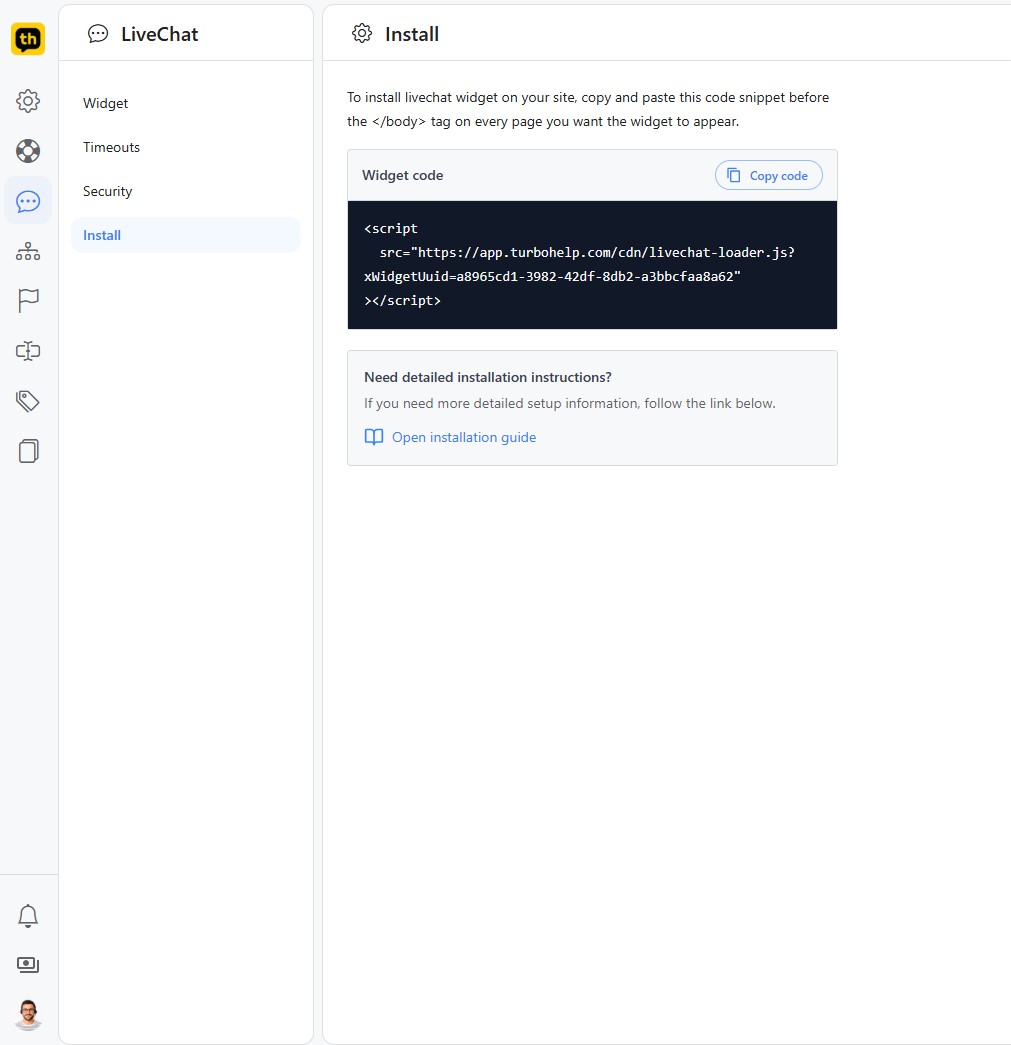
Go to Admin > Settings > Live Chat > install copy the code snippet and paste it before the </body> tag on every page you want the widget to appear on your site.
Automatically Adding Widget On TurboHelp Help Center
If you want to show widget on the help center and customer ticket portal pages, you can activate Show livechat option from Admin > Settings > Help Center > live chat. This will cause the widget to show on TurboHelp landing page, all help center pages and custom ticket portal pages. It will also automatically login user in the widget, if they are currently logged in on TurboHelp.
Widget Options (Optional)
You can specify which AI agent to use, whether agent knowledge should be scoped to specific tag and current user data by adding window.BeChatSettings object before the widget script loads.
Here is an example of how to configure these options:
window.TurboChatSettings = {
    aiAgentId: 1,
    knowledgeScopeTag: 'sales',
    user: {
        name: 'John Appleseed',
    }
};
<script src="https://your-turbohelp-domain.com/cdn/livechat-loader.js"></script>
aiAgentId: Specifies precisely which AI agent should be used for the chat session. If none is specified, the AI Agent that was created first will be used.
knowledgeScopeTag: Allows you to limit the AI agent's knowledge. When set, the agent will only use knowledge that has specified tag (e.g., 'sales').
user: Used to pass information about the currently logged-in user. For more details on how to structure this data, please see our guide on Identifying Logged-in Users in Live Chat Widget.
Widget Not Loading? Check Hosting Settings
If the widget doesn't appear, a security feature in your website's hosting panel (like cPanel or Plesk) is likely blocking it. The domain where TurboHelp is hosted will need to be embedded inside an iframe, so any functionality blocking this would prevent widget from showing.
In your hosting control panel, look for and adjust settings related to:
ModSecurity or other Web Application Firewalls (WAF) that might have rules against embedding.
Content Security Policy (CSP) headers.
The
X-Frame-Optionsheader should be disabled (or set to allow domain where TurboHelp is hosted).
Tip: If you want to only allow widget to be added on specific domains, you can configure this from Admin > Settings > Live Chat > security page, instead of relying on hosting or server configuration.
Best Practices
Keep the first widget experience short: ask only for the information agents truly need.
Verify identity for logged-in users before exposing account-specific conversation history.
Check widget behavior on key pages after changing themes, forms, or security rules.