
This guide helps your team get more value from TurboHelp's AI and Automation tools. Use it to understand the feature, configure it correctly, and know what to check before relying on it in your daily support workflow.
At a Glance
Use automation to remove repetitive work while keeping humans available for complex issues.
Start with focused rules or flows, test them with real examples, and expand gradually.
Review AI handoffs, tool results, and knowledge quality so automation stays helpful.
This guide will walk you through each option on the AI Agent settings page, helping you customize your agent to perfectly match your brand's voice and operational needs. First impressions matter, and with these settings, you can ensure your AI Agent provides a welcoming and effective experience for your customers.
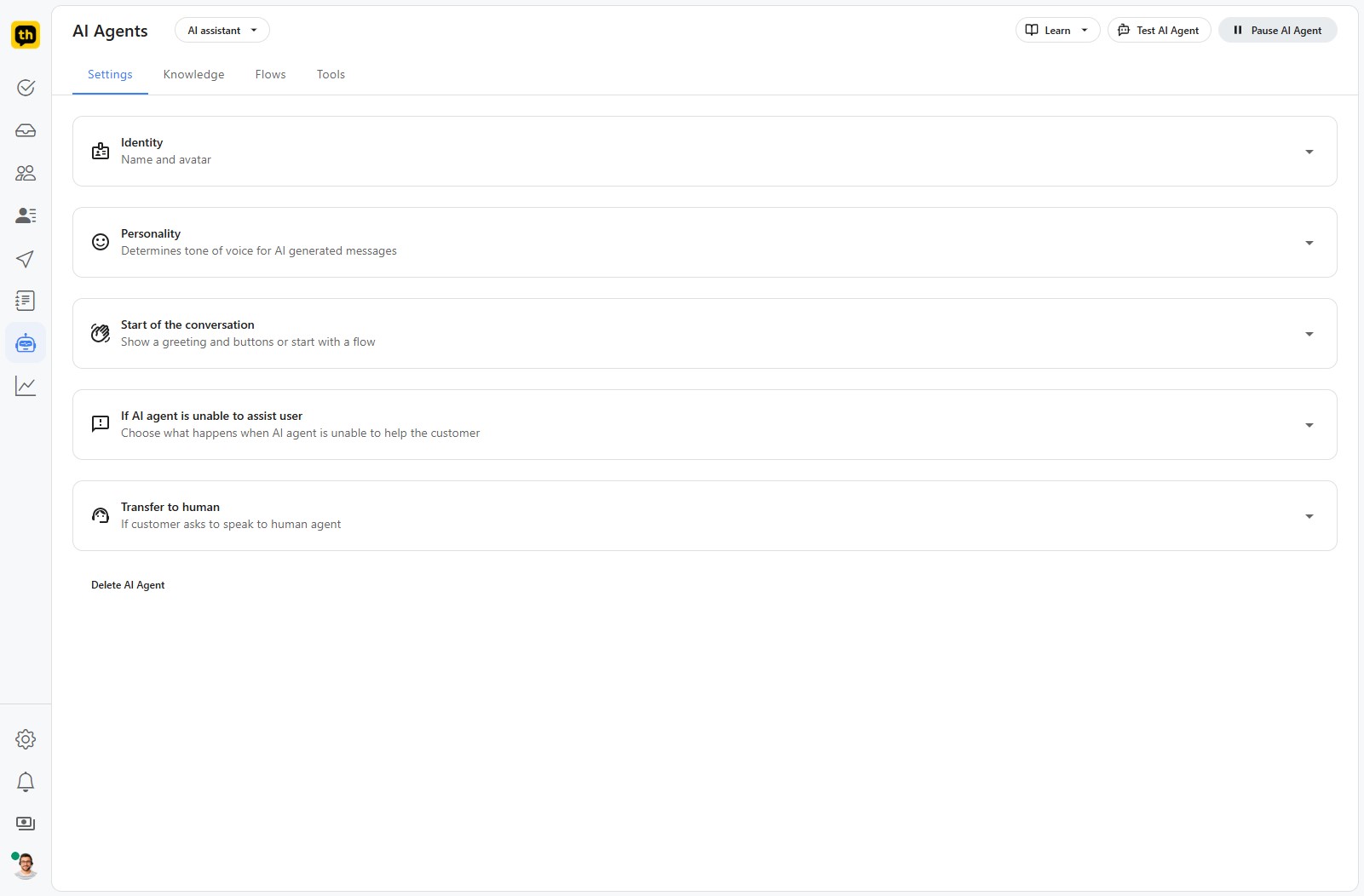
Identity
This section allows you to give your AI agent a name and a face, making interactions feel more personal and less robotic.
Name: Enter the name you want your customers to see. This could be a person's name (like "Alex") or a branded name (like "TurboHelp Helper").
Avatar: Upload an image to serve as the agent's profile picture. A good avatar builds trust and brand recognition.
File Requirements:
Format: JPG, PNG, or GIF
Size: Smaller than 100KB
Dimensions: 50px by 50px is recommended for best results.
Click Save to confirm your agent's new identity.
Personality
Define the tone of voice for all AI-generated messages to ensure it aligns with your company's communication style.
Choose from one of the four available personalities:
Friendly: Uses a warm, conversational, and often casual style. Great for brands with a relaxed and approachable voice.
Neutral: Provides straightforward, direct, and objective information. This tone is purely functional.
Professional: Communicates with a more formal, polite, and structured tone. Ideal for corporate or B2B environments.
Humorous: Injects light-heartedness and wit into its responses. Use this to create a memorable and engaging user experience.
After selecting a personality, click the Save button in this section.
Start of the Conversation
Configure how your AI Agent initiates a chat. You can either greet the user with a set of options or launch directly into a specific workflow.
You have two primary options:
Send a greeting message and show buttons:
This is the default option. The agent will present a welcome message followed by interactive buttons that link to your predefined Flows.
Message: Write the initial greeting your customers will see (e.g., "Hello! How can I assist you today?").
Flows (Optional): Select the key Flows you want to present as buttons. This helps guide users to the most common solutions, like "Track my order" or "Frequently Asked Questions".
Start with a specific flow:
Choose this to have the AI agent immediately launch a single, specific Flow as soon as the chat begins. This is useful for dedicated support channels, like a sales inquiry or a booking process.
Tip: Only presentational steps from the flow will be executed for initial AI agent message. These include Message, Cards, Articles and Buttons steps.
If AI agent is unable to assist user
Decide what happens when the AI agent encounters a query it cannot resolve. This is your fallback or escalation path, ensuring customers are never left at a dead end.
Instruction (optional): Provide an instruction for what the AI agent should do when it's stuck. For example: say why you are unable to help and ask if you can help with something else.
Transfer to human
Configure what happens if a user asks AI agent to speak to a human. There are two options:
Transfer customer to first available agent or put into queue: Will transfer conversation to first available agent, respecting global and agent work hours as well as agent conversation limits. If no agent is currently available, it will put customer in a queue.
Custom instruction: Specify a custom instruction on what AI Agent should do. For example:
Say that we are currently on holidays and team is not available until friday.
Best Practices
Give the AI agent narrow, high-quality knowledge before broadening its scope.
Always define a clean escalation path to a human agent.
Use test conversations to confirm the automation does what customers expect, not just what the rule says.