
This guide helps your team get more value from TurboHelp's Integrations tools. Use it to understand the feature, configure it correctly, and know what to check before relying on it in your daily support workflow.
At a Glance
Use integrations to connect TurboHelp with the services your team already depends on.
Create credentials with the minimum access required and store them securely.
Test each integration with a real support scenario before announcing it to customers.
Captcha (Completely Automated Public Turing test to tell Computers and Humans Apart) is an essential tool to protect your helpdesk from spam and automated bots. By enabling it, you can ensure that submissions from your public-facing forms are from legitimate users.
TurboHelp integrates with two leading providers: Cloudflare Turnstile and Google reCAPTCHA. This guide will walk you through setting it up.
Accessing Captcha Settings
You can easily find the Captcha configuration page in your admin panel.
Navigate to the Admin area.
From the left sidebar, click on Settings.
Select the Captcha tab from the settings menu.
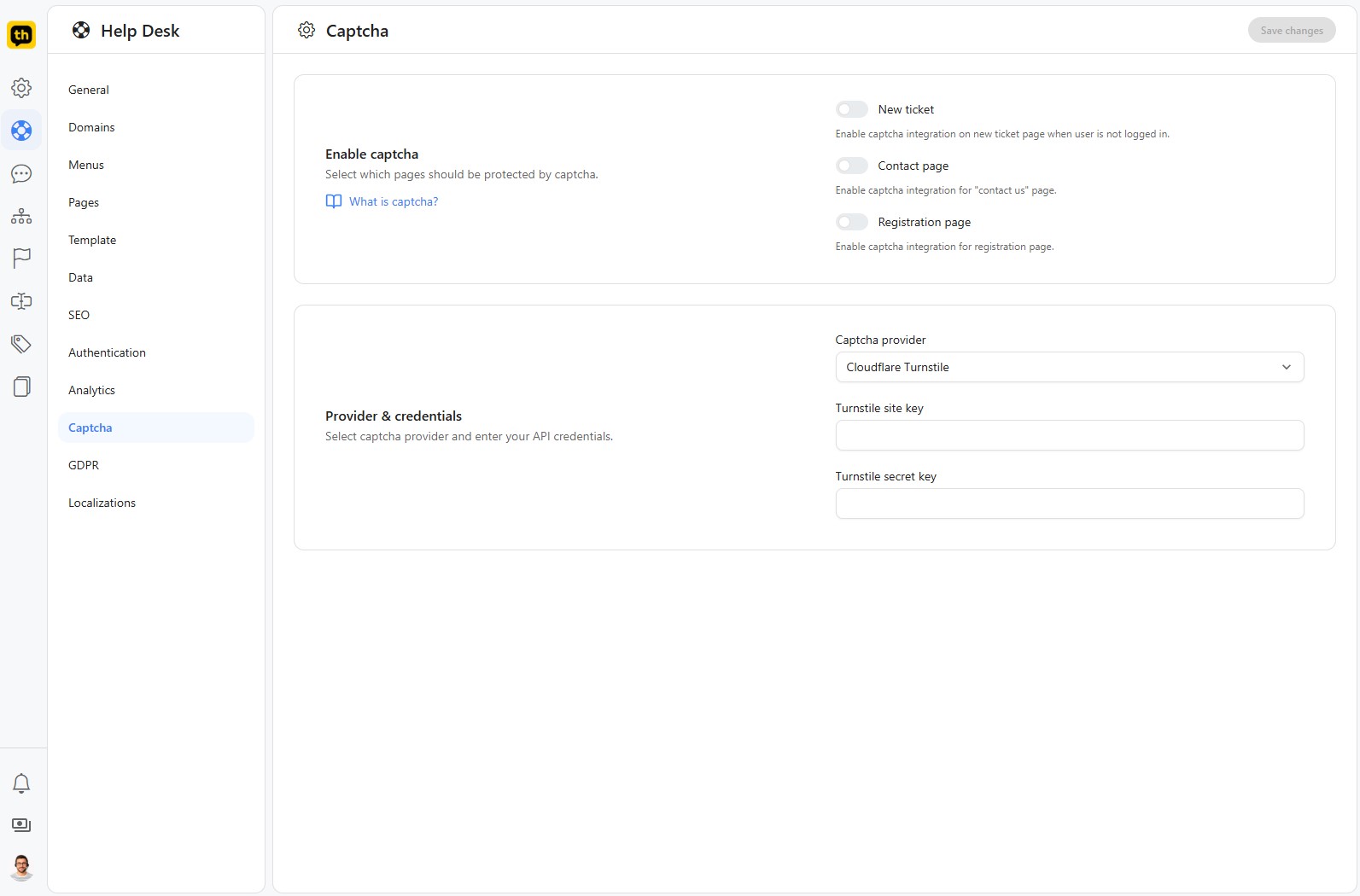
Enable Captcha
In this section, you can decide exactly where the captcha challenge should appear. It's recommended to enable it on all public forms that don't require a user to be logged in.
Use the toggles to enable or disable captcha on the following pages:
New ticket: Protects the new ticket creation page for guests.
Contact page: Secures your primary "Contact Us" form from spam bots.
Registration page: Prevents bots from creating fake user accounts.
Provider & Credentials
This is where you connect TurboHelp to your chosen captcha service. You'll first need to obtain API credentials from either Cloudflare or Google.
Choosing Your Provider
TurboHelp supports two providers:
Cloudflare Turnstile: A modern, privacy-respecting, and often invisible alternative to traditional captchas. It avoids frustrating puzzles for a smoother user experience.
Google reCAPTCHA: The widely-used service from Google. TurboHelp is compatible with both reCAPTCHA v2 ("I'm not a robot" checkbox) and v3 (invisible score-based detection).
Configuration Steps
1. Get Your API Keys
First, you must generate a Site Key and a Secret Key from your chosen provider's website.
For Cloudflare Turnstile: Go to the Cloudflare Turnstile Dashboard to add your site and get your keys.
For Google reCAPTCHA: Go to the Google reCAPTCHA Admin Console to register your site and receive your keys.
2. Enter Credentials in TurboHelp
Once you have your keys, return to the TurboHelp Captcha settings page.
Select your provider (Cloudflare Turnstile or Google reCAPTCHA) from the Captcha provider dropdown menu.
Carefully copy the Site Key from your provider and paste it into the corresponding field in TurboHelp.
Copy the Secret Key and paste it into its field.
Save Your Changes
After you've enabled captcha on the desired pages and entered your provider credentials, click the Save changes button in the top-right corner.
That's it! Your forms are now protected from spam and abuse.
Best Practices
Rotate keys when a teammate leaves or an integration is rebuilt.
Keep a record of which external account owns each credential.
Disable integrations you no longer use to reduce security and maintenance overhead.