
This guide helps your team get more value from TurboHelp's Integrations tools. Use it to understand the feature, configure it correctly, and know what to check before relying on it in your daily support workflow.
At a Glance
Use integrations to connect TurboHelp with the services your team already depends on.
Create credentials with the minimum access required and store them securely.
Test each integration with a real support scenario before announcing it to customers.
TurboHelp REST API provides powerful and programmatic access to the features and data within your TurboHelp. Whether you're looking to build custom integrations, automate workflows, or extend TurboHelp's functionality, the API is the tool for the job.
This guide will walk you through accessing the documentation, authenticating your requests, and discovering the available endpoints.
The Power of the API
A key principle of TurboHelp is that the website, live chat widget, AI agent and all other functionality is built on top of this API. This means that any action you can perform through the TurboHelp website or live chat widget—from creating a ticket to updating a user profile—can also be accomplished through the API. There are no hidden or private endpoints.
API Documentation
We provide comprehensive API documentation based on the OpenAPI 3.0 standard to help you get started quickly.
Accessing from the Website
The easiest way to access the interactive API documentation is directly from TurboHelp in agent profile or account settings page.
Click on your avatar in the bottom-left corner and go to Account settings.
Navigate to the API tab.
Click the Documentation link to open the interactive Swagger UI.

The swagger.yaml File
You can also find the raw OpenAPI specification file, swagger.yaml, in public folder inside main TurboHelp directory on your server. You can use this file with various third-party tools to generate client libraries or for local documentation viewers.
Authentication
All requests to the TurboHelp API must be authenticated using a bearer token. The token must be included in the Authorization header of every request.
Header Format: Authorization: Bearer
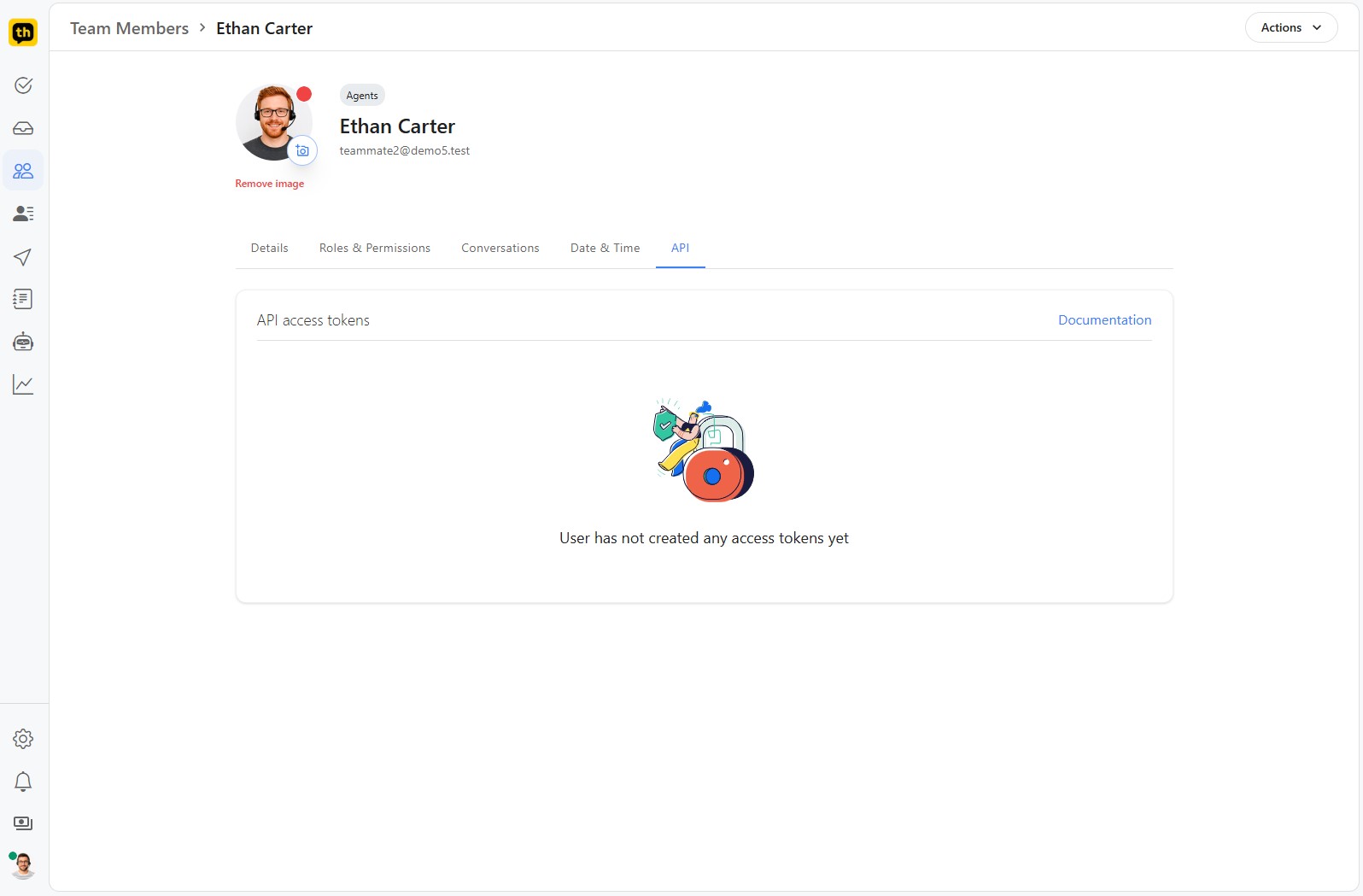
You can generate API access tokens for your agents directly from their profile page:
Navigate to an agent's profile page (Team members > Agent Name).
Go to the API tab.
Under the API access tokens section, you can generate and manage your tokens.
Alternatively, a token can be acquired programmatically by making a POST request to the /api/v1/auth/login endpoint with valid user credentials.
Discovering Endpoints in Your Browser
Since TurboHelp uses the very same API you have access to, one of the best ways to learn how it works is by observing it in action. You can use your web browser's built-in developer tools to see exactly which API calls are made for any action you perform.
Open your browser's Developer Tools. This is usually done by pressing
F12orCtrl+Shift+I(Cmd+Opt+Ion Mac).Switch to the Network tab.
Perform an action in the TurboHelp application, such as replying to a ticket or creating a new tag.
Observe the new requests that appear in the Network tab. You can click on a request to inspect its URL, the parameters sent (payload), and the JSON response from the server.
This technique is invaluable for understanding how to structure your own API calls correctly.
Best Practices
Rotate keys when a teammate leaves or an integration is rebuilt.
Keep a record of which external account owns each credential.
Disable integrations you no longer use to reduce security and maintenance overhead.