
This guide helps your team get more value from TurboHelp's Settings tools. Use it to understand the feature, configure it correctly, and know what to check before relying on it in your daily support workflow.
At a Glance
Use settings to shape TurboHelp around your team's support process, brand, and security needs.
Document meaningful changes so admins can understand why each option was configured.
Test customer-facing changes in a staging or low-risk environment when possible.
The Tickets settings page in your TurboHelp admin area gives you powerful control over how your helpdesk handles incoming support requests and communicates with your customers. Properly configuring these settings will help you streamline your workflow, improve agent efficiency, and provide a better customer experience.
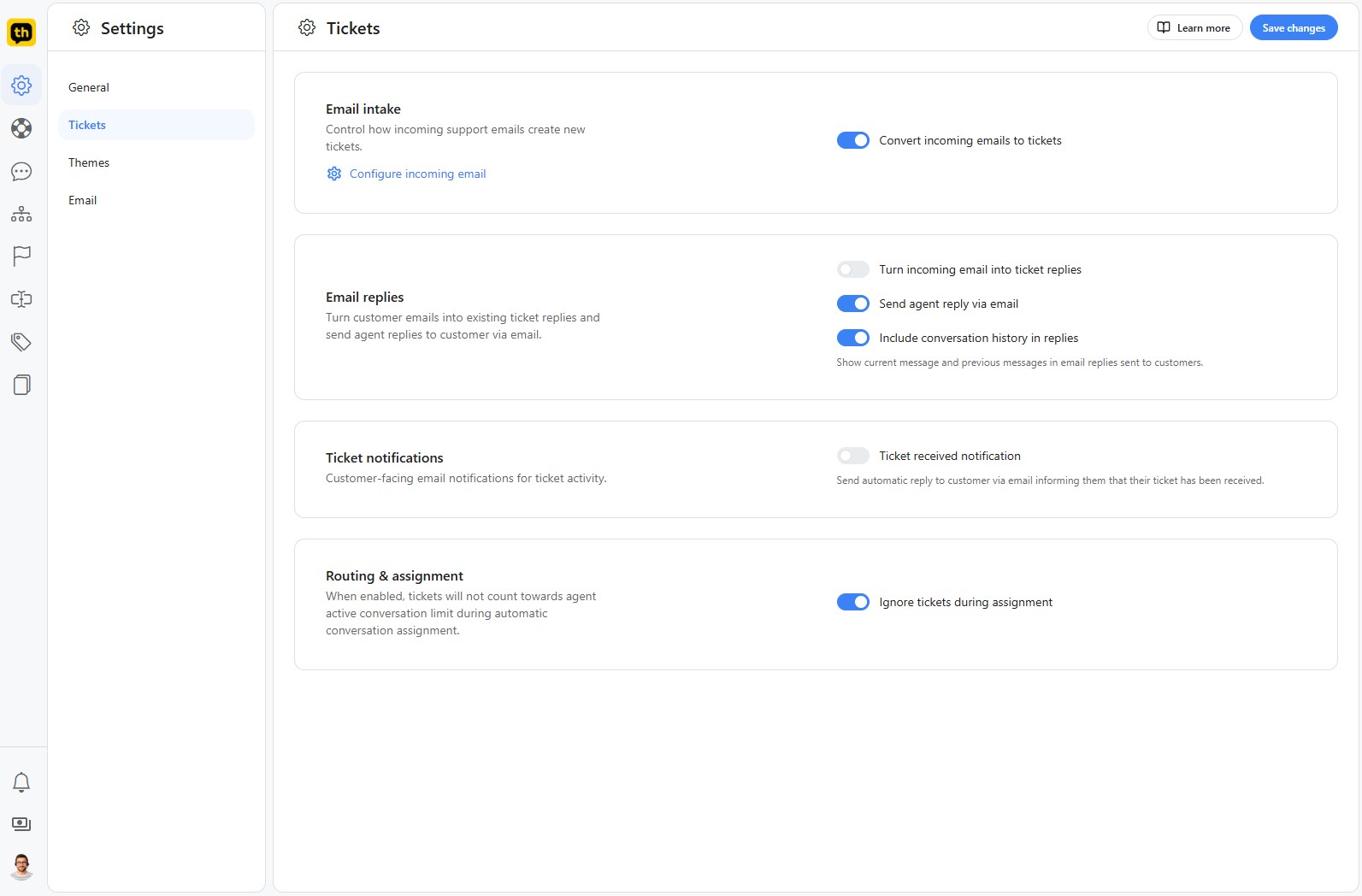
Let's go through each setting available on this page.
Convert Incoming Emails to Tickets
This is the core feature for integrating your email support with the TurboHelp ticket system.
Convert incoming emails to tickets: When this is toggled on, any email sent to configured addresses will be automatically converted into a new ticket in TurboHelp. This ensures all support requests are centralized and tracked, regardless of how they come in.
Tip: Configure your incoming email handlers in Admin > Settings > Email > Incoming page.
Ticket Replies
These settings control how replies are handled between your agents and customers via email.
Turn incoming email into ticket replies: When a customer replies to a ticket notification email, this option will automatically add their reply to the corresponding ticket in TurboHelp.
Send agent reply via email: Enable this to ensure that when your support agents reply to a ticket from within the TurboHelp platform, the reply is sent as an email to the customer.
Conversation History
This setting helps provide context to your customers in email communications.
Include conversation history in replies: If you enable this, all email replies sent to customers will include the previous messages from the conversation. Most email clients already provide conversation history so it's usually best to keep this off to keep emails tidy.
Auto-Reply
Keep your customers informed from the moment they reach out.
Ticket received notification: Toggle this on to send an automatic email reply to a customer as soon as their ticket is created. This assures them that their request has been received and is in the queue.
Ticket Assignment
This setting is useful if you use automatic assignment rules for your support agents.
Ignore tickets during assignment: When enabled, newly created tickets that are being automatically assigned will not count towards an agent's active conversation limit. This prevents agents from being overloaded by the automated system and allows for a more balanced distribution of active, real-time conversations.
Guest Tickets
This option controls who can create tickets through your help center.
Allow guest tickets: By enabling this setting, you allow visitors who are not logged into your help center to create support tickets. This is useful for capturing requests from potential customers or users who have not yet created an account. If this is disabled, only logged-in users will be able to submit tickets.
Best Practices
Change one major setting at a time and verify the result.
Keep admin-only settings limited to trusted users.
Revisit settings after product, policy, or brand changes.