
This guide helps your team get more value from TurboHelp's Settings tools. Use it to understand the feature, configure it correctly, and know what to check before relying on it in your daily support workflow.
At a Glance
Use settings to shape TurboHelp around your team's support process, brand, and security needs.
Document meaningful changes so admins can understand why each option was configured.
Test customer-facing changes in a staging or low-risk environment when possible.
The Custom Pages feature allows admins to easily create simple, static pages for your help center. This is perfect for essential but straightforward content that doesn't change often. This area is only accessible to users with admin privileges.
What Are Custom Pages For?
Custom pages are intended for simple, informational content. Think of pages that most websites need, such as:
Privacy Policy
Terms of Service
About Us
The goal is to provide a simple way to manage this content directly within TurboHelp without needing to write any code.
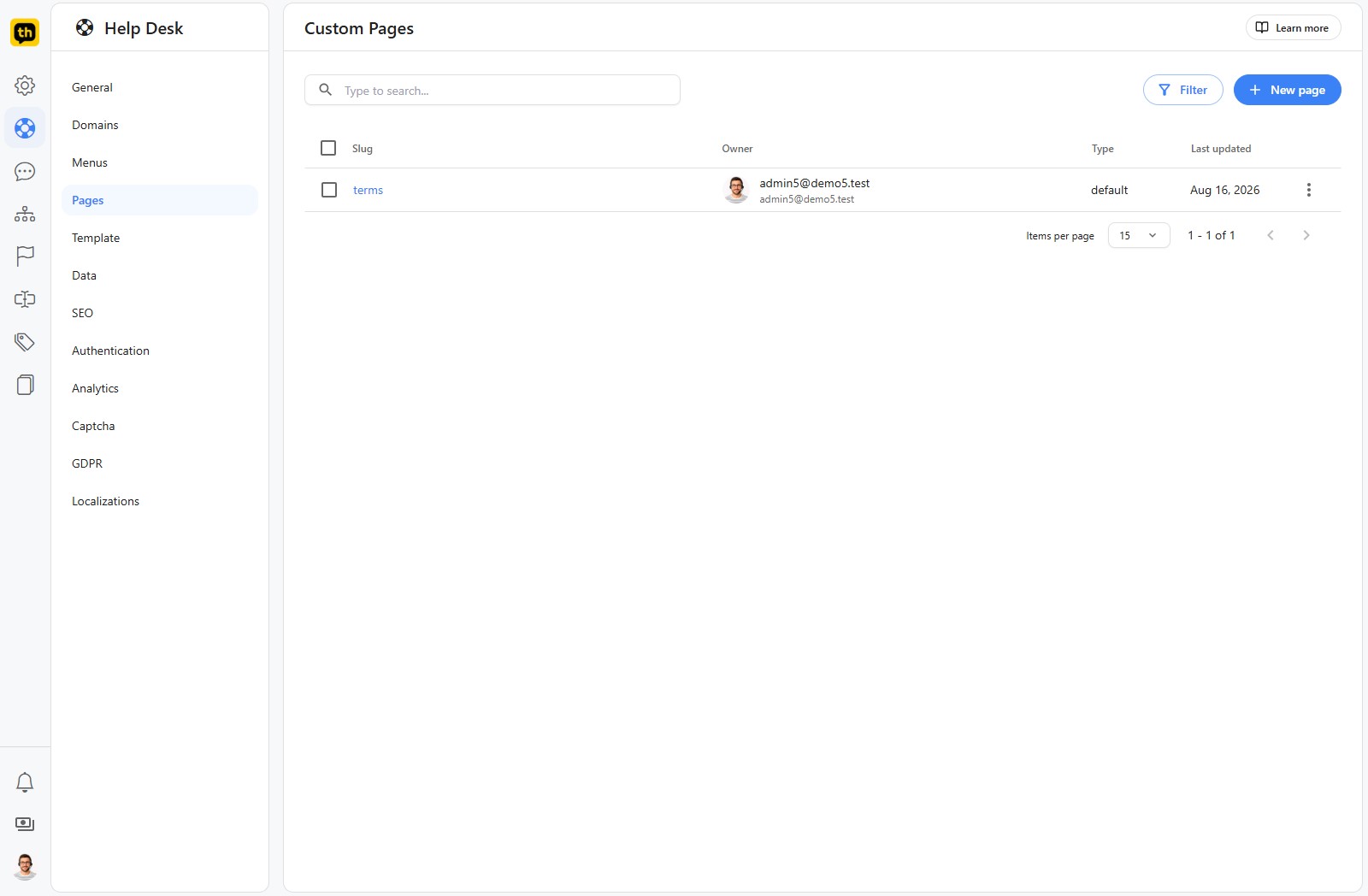
How to Create and Manage a Page
Navigate to Pages: In the admin panel, click on Pages in the left-hand sidebar.
Create a New Page: Click the + New page button in the top-right corner to open the editor.
Add Content: Use the rich-text editor to add a title and your main content. You can use basic formatting options like headings, bold and italic text, lists, and links to structure your page.
Save: Once you're finished, click the Save button.
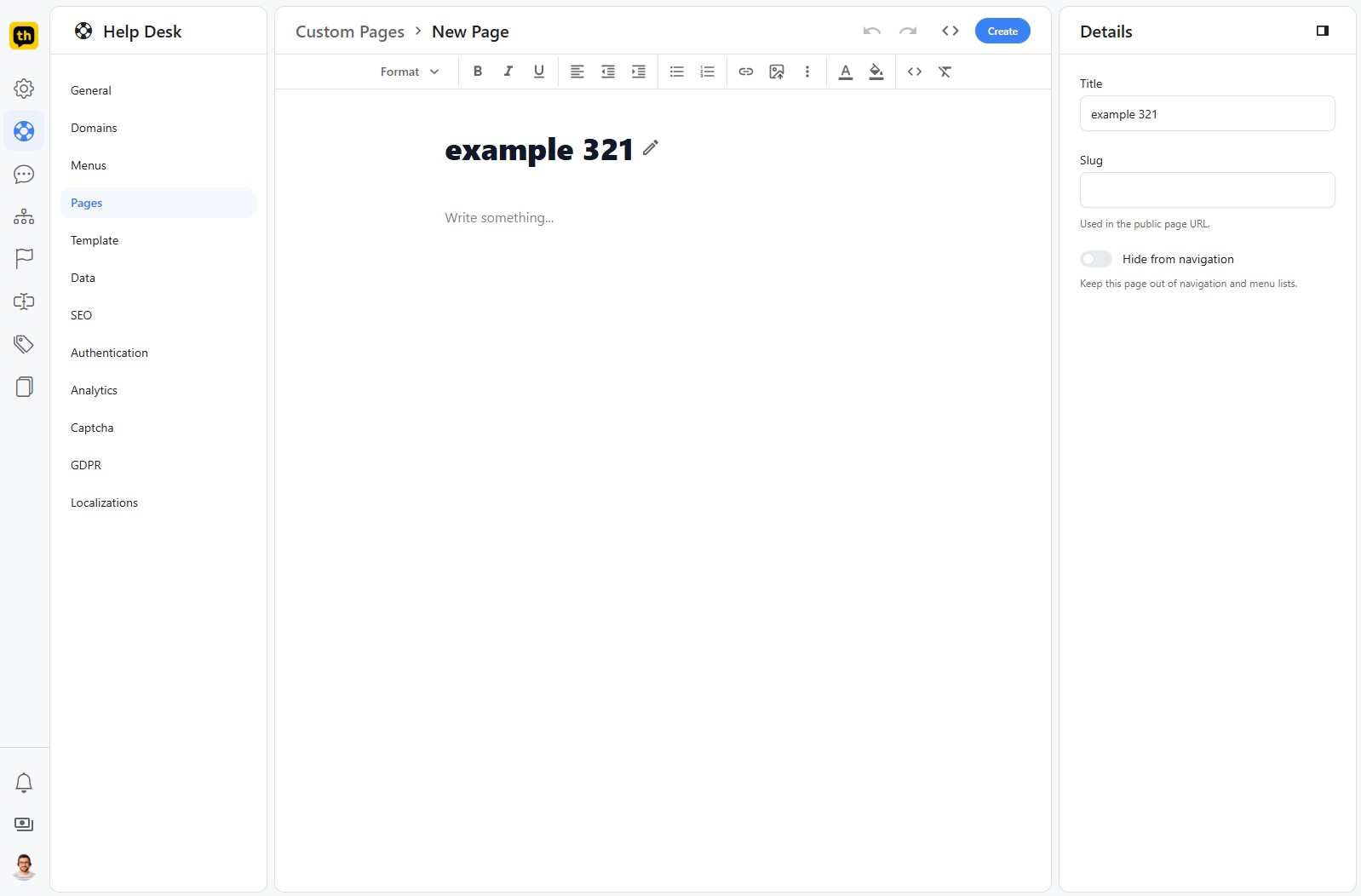
Your new page will now appear in the list on the main Pages screen. Each page in the list displays its slug, which is the unique, URL-friendly identifier for the page (e.g., your-site.com/p/privacy-policy). You can edit any existing page by clicking the pencil icon on the right.
Important Limitations
Please keep in mind that the custom pages feature is designed for simplicity. It is not a full-fledged website builder and does not support advanced HTML, CSS, or JavaScript. It is best used for the simple, text-based documents it was designed for.
Best Practices
Change one major setting at a time and verify the result.
Keep admin-only settings limited to trusted users.
Revisit settings after product, policy, or brand changes.