
This guide helps your team get more value from TurboHelp's Live Chat tools. Use it to understand the feature, configure it correctly, and know what to check before relying on it in your daily support workflow.
At a Glance
Use the live chat widget to support visitors in real time without forcing them to leave your site.
Configure identity, routing, forms, and campaigns before driving production traffic to the widget.
Test the widget on desktop and mobile after every meaningful configuration change.
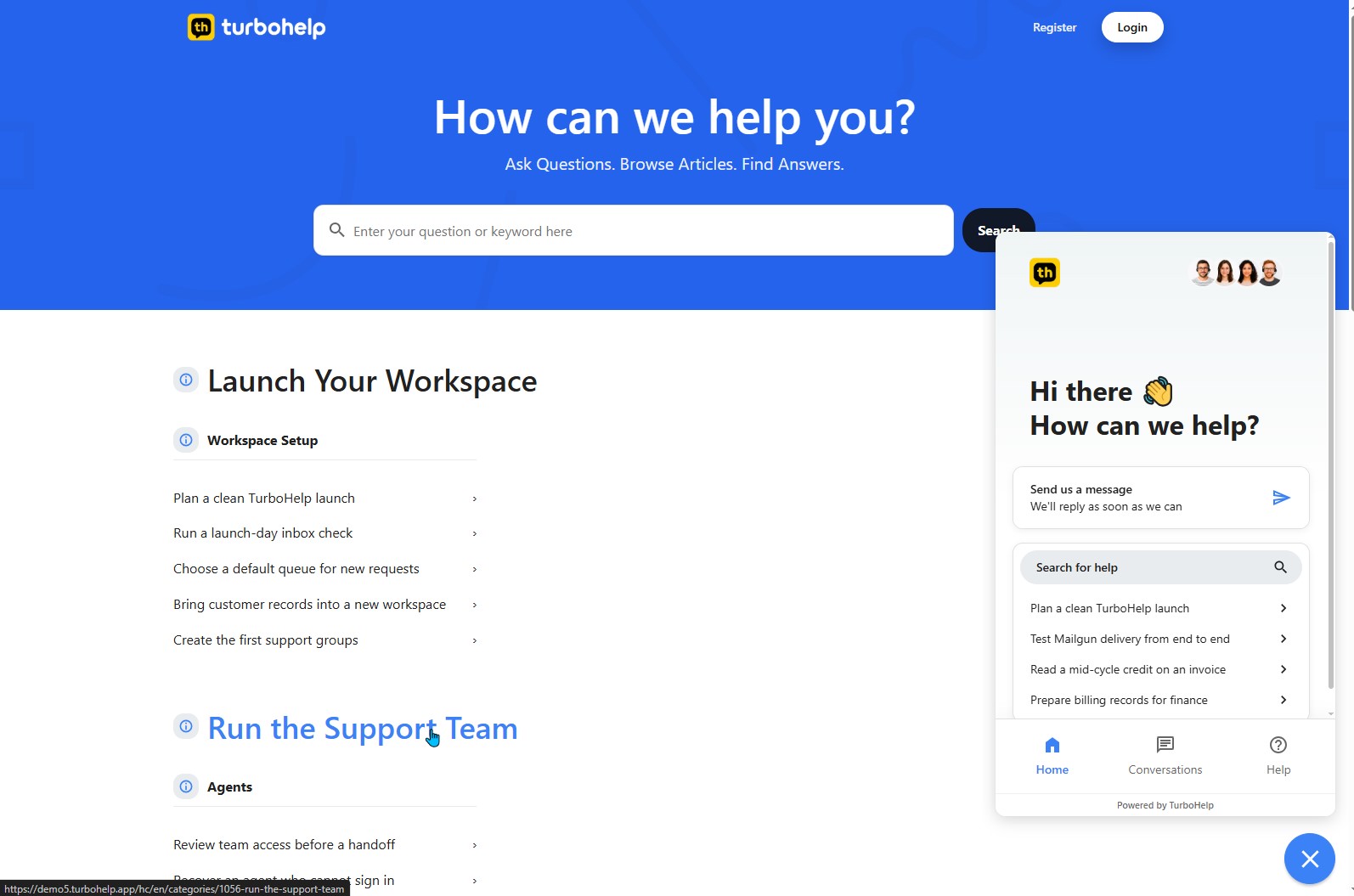
The TurboHelp Live Chat widget is a powerful tool you can embed on your website to provide an all-in-one support hub. It allows your customers to find answers in your knowledge base, connect with your human support team, get instant help from a powerful AI Agent, and engage with proactive campaigns.
This article provides a general overview of the three main screens your customers will see and interact with: Home, Conversations, and Help. Understanding this interface will help you optimize your support strategy.
Customizing the Widget
You can customize the widget's appearance and behavior to perfectly match your brand and website. This ensures a seamless experience for your customers.
You have control over what content appears, the widget's style, launcher button, which screens are active, pre-chat and post-chat forms and much more. To learn how to configure these options, please see our complete guide: Widget Customization Options.
Screens
The widget's user interface is composed of up to three main screens. The following sections provide an overview of each one you can enable for your customers.
The Home Screen
The Home screen is the main landing page of the widget and the first impression for your customers. Here, they can see your available agents, jump back into a recent conversation, or use the prominent search bar to find answers in your knowledge base.
You can customize this screen by featuring suggested articles to address common questions proactively, reducing the need for live chats. For a detailed guide on setup, see our article: Customizing the Widget Home Screen.
The Conversations Screen
The Conversations screen acts as a personal inbox where your customers can review their entire chat history with your team, as well as see any tickets they have created. They can scroll through past discussions for reference or tap the "New conversation" button to initiate a new chat at any time.
Any new conversation started by a customer here will appear directly in your TurboHelp dashboard for your agents to handle.
The Help Center Screen
The Help screen is your complete self-service knowledge base, fully integrated into the widget. It empowers your customers to find solutions 24/7 by either searching for specific answers or Browse through the article categories you've organized.
This section is populated directly from the articles and categories you create in TurboHelp, giving you full control over the self-service content. For instructions on setting this up, visit: Configuring Your Help Center and Categories.
Best Practices
Keep the first widget experience short: ask only for the information agents truly need.
Verify identity for logged-in users before exposing account-specific conversation history.
Check widget behavior on key pages after changing themes, forms, or security rules.