
This guide helps your team get more value from TurboHelp's Live Chat tools. Use it to understand the feature, configure it correctly, and know what to check before relying on it in your daily support workflow.
At a Glance
Use the live chat widget to support visitors in real time without forcing them to leave your site.
Configure identity, routing, forms, and campaigns before driving production traffic to the widget.
Test the widget on desktop and mobile after every meaningful configuration change.
Campaigns are a versatile tool that allows you to proactively engage with your website visitors and customers. You can use them to announce new features, offer discounts, provide support, and more. This article will guide you through the benefits of using campaigns, how to create and edit them, and how to analyze their performance.
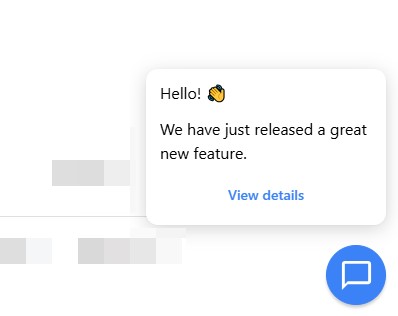
Benefits of using campaigns
Increase engagement: Proactively reach out to visitors to start a conversation and keep them engaged with your brand.
Boost sales: Promote special offers and discounts to drive conversions.
Announce new features: Inform users about new functionality and improvements to your product.
Provide targeted support: Offer help to users who might be struggling on a specific page or with a particular feature.
Gather feedback: Use campaigns to ask for feedback and suggestions from your users.
Campaign templates
TurboHelp comes with a variety of pre-built campaign templates to help you get started quickly.
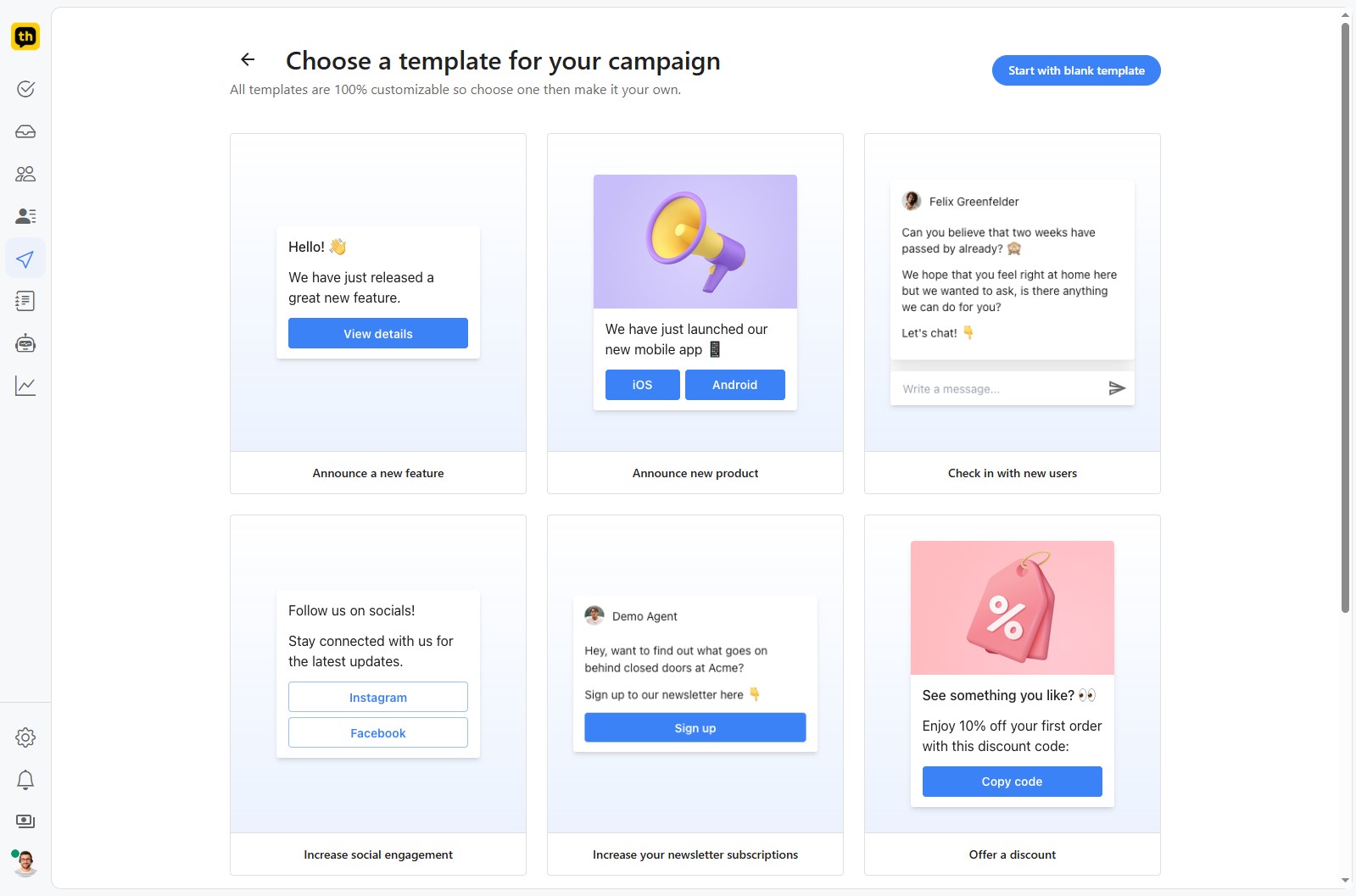
These templates cover a range of common use cases, such as:
Announce a new feature: Let your users know about the latest and greatest additions to your product.
Announce new product: Launch a new product or service with a targeted announcement.
Check in with new users: Welcome new users and offer them help to get started.
Increase social engagement: Encourage visitors to follow you on social media.
Increase your newsletter subscriptions: Grow your mailing list by prompting visitors to subscribe.
Offer a discount: Drive sales by offering a special discount to your visitors.
You can also start with a blank template and build your campaign from scratch.
How campaigns are displayed
You have full control over how your campaigns look and feel. In the Appearance tab of the campaign editor, you can customize the following:
Style: Choose a text color, text size, and popup size that matches your brand.
Background: Select a flat color, a gradient, or a background image.
Font: Choose from a variety of fonts to match your website's typography.
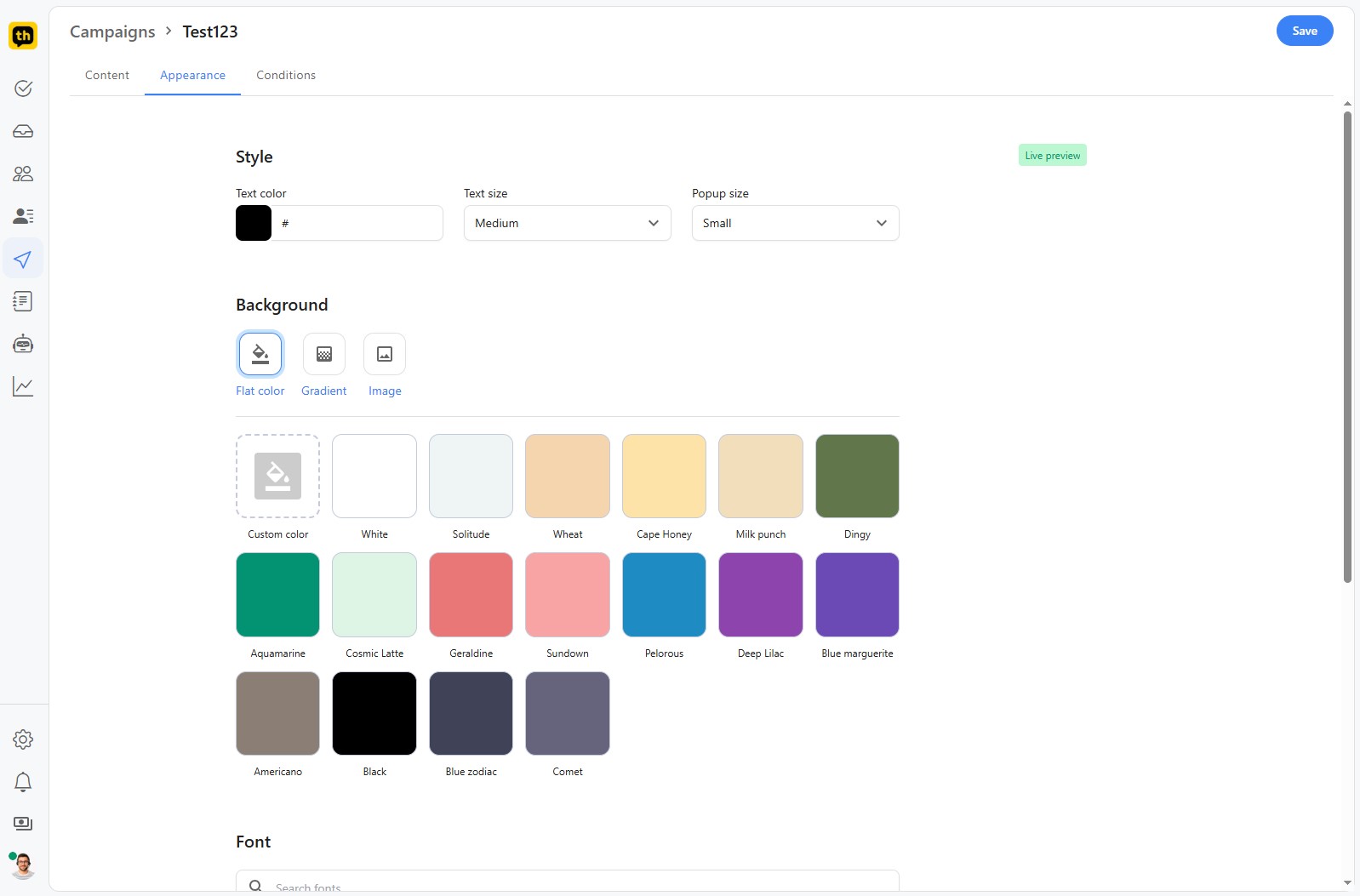
A live preview of your campaign is available on the right side of the screen, so you can see your changes in real-time.
Target the right audience with conditions
Conditions allow you to target your campaigns to specific segments of your audience. This ensures that your messages are relevant and timely. You can set conditions based on a variety of factors, including:
Time on current page: Show a campaign to a visitor after they have spent a certain amount of time on a specific page.
Is returning visitor: Target visitors who have been to your website before.
Never interacted with widget: Show a campaign to visitors who have not yet interacted with the live chat widget.
Custom attributes: Show a campaign based on custom attributes specified via live chat widget API.
You can combine multiple conditions to create highly targeted campaigns. For example, you could create a campaign that is only shown to returning visitors who have spent more than 30 seconds on your pricing page.
Create and edit campaigns
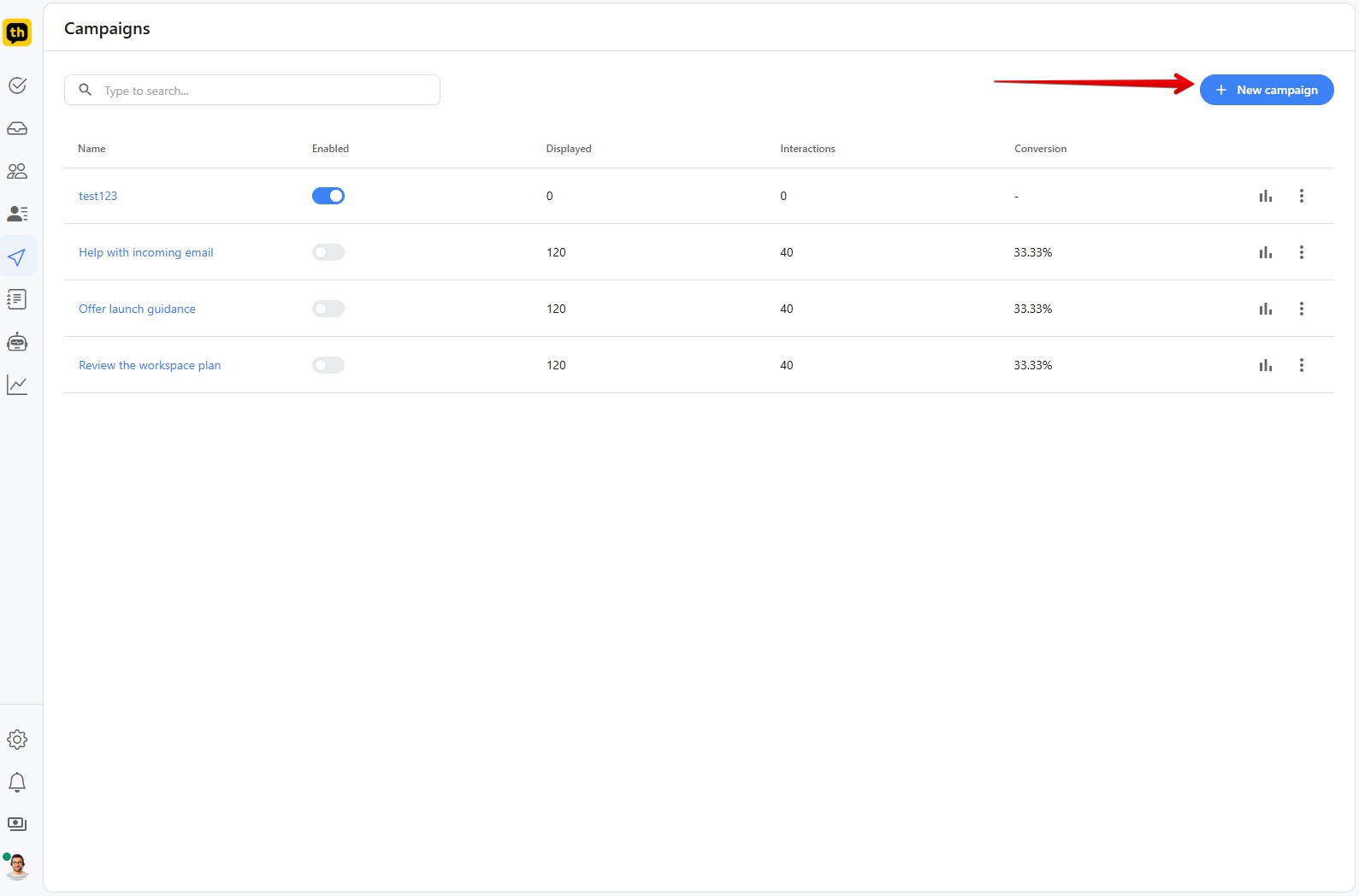
To create a new campaign, click on the New campaign button in the top right corner of the Campaigns page. You will then be taken to the campaign editor, where you can choose a template or start from scratch.
The campaign editor has three tabs:
Content: This is where you will create the content of your campaign. You can add text, images, buttons, and more.
Appearance: This is where you will customize the look and feel of your campaign.
Conditions: This is where you will set the conditions that determine when and to whom your campaign is displayed.
Once you are happy with your campaign, you can click on the Save button to save it. You can then enable or disable your campaigns from the Campaigns page.
Analyze your campaigns’ performance
The Campaigns page provides an overview of the performance of your campaigns. For each campaign, you can see the following metrics:
Displayed: The number of times the campaign has been displayed to visitors.
Interactions: The number of times visitors have interacted with the campaign (e.g., clicked on a button).
Conversion: The percentage of visitors who interacted with the campaign.
For a more detailed analysis of your campaign's performance, you can click on the chart icon next to the campaign. This will take you to the campaign report, where you can see a breakdown of the campaign's performance over time, as well as information about the top locations, devices, browsers, and platforms of the visitors who interacted with the campaign.

Best Practices
Keep the first widget experience short: ask only for the information agents truly need.
Verify identity for logged-in users before exposing account-specific conversation history.
Check widget behavior on key pages after changing themes, forms, or security rules.