
This guide helps your team get more value from TurboHelp's Conversations tools. Use it to understand the feature, configure it correctly, and know what to check before relying on it in your daily support workflow.
At a Glance
Use this feature to keep customer conversations organized and easy to act on.
Pair it with clear statuses, tags, and ownership rules so agents always know the next step.
Review the setup regularly as your support volume and team structure change.
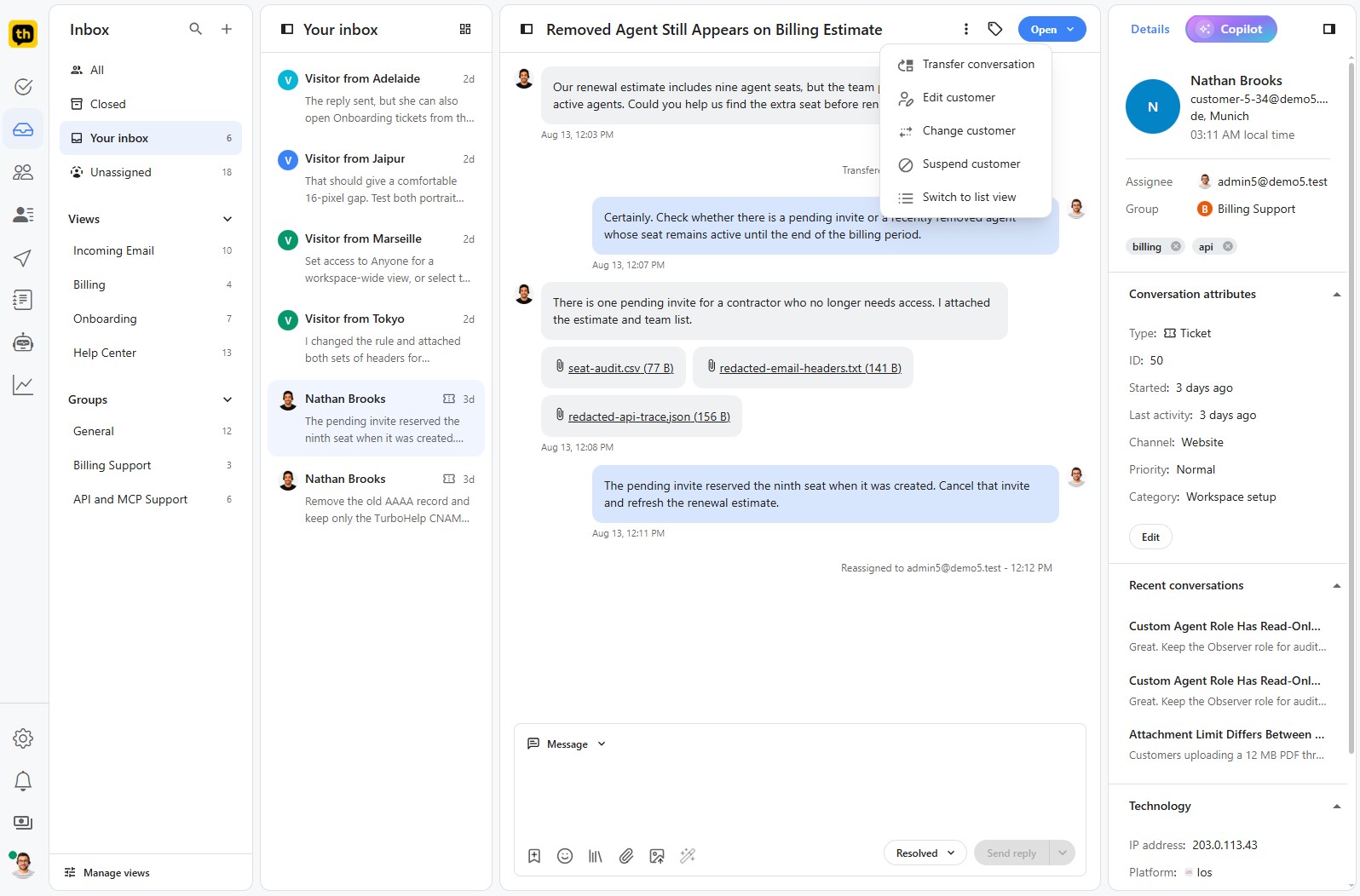
The Conversation Page is the heart of your TurboHelp workspace. It's where your team will interact with customers, view their history, and access all the tools needed to provide exceptional support. This single, unified view gives your agents the context they need to resolve issues efficiently.
The Main Conversation Area
The central panel displays the complete, chronological history of the conversation between the customer and your agents.
Customer Messages: See exactly what your customer has written.
Agent Replies: Track your team's responses.
System Events: Important actions like ticket assignments (e.g.,
Reassigned to Demo Admin) are automatically logged in the timeline, giving you a clear audit trail.
The Reply Composer
At the bottom of the page is the powerful reply composer, where your agents craft their messages. It's equipped with several tools to make responding faster and more effective.
Saved Replies: Insert pre-written answers to common questions with a single click.
Emoji: Add a human touch and convey tone more effectively.
Insert Help Center Article: Easily search for and link to relevant articles from your knowledge base.
Add Attachment & Image: Share files, documents, invoices, or screenshots directly in the chat.
Enhance with AI: Supercharge your replies with our built-in AI assistant.
Shorten/Lengthen: Make your message more concise or more detailed.
Simplify: Rephrase complex language to be more easily understood.
Fix Spelling & Grammar: Ensure your replies are professional and error-free.
Change Tone: Adjust the tone of your message (e.g., from formal to friendly).
Translate: Communicate with customers in their native language.
The Right Sidebar: Customer Context at a Glance
The right-hand sidebar provides a complete 360-degree view of the customer you are interacting with.
Top Actions & Details
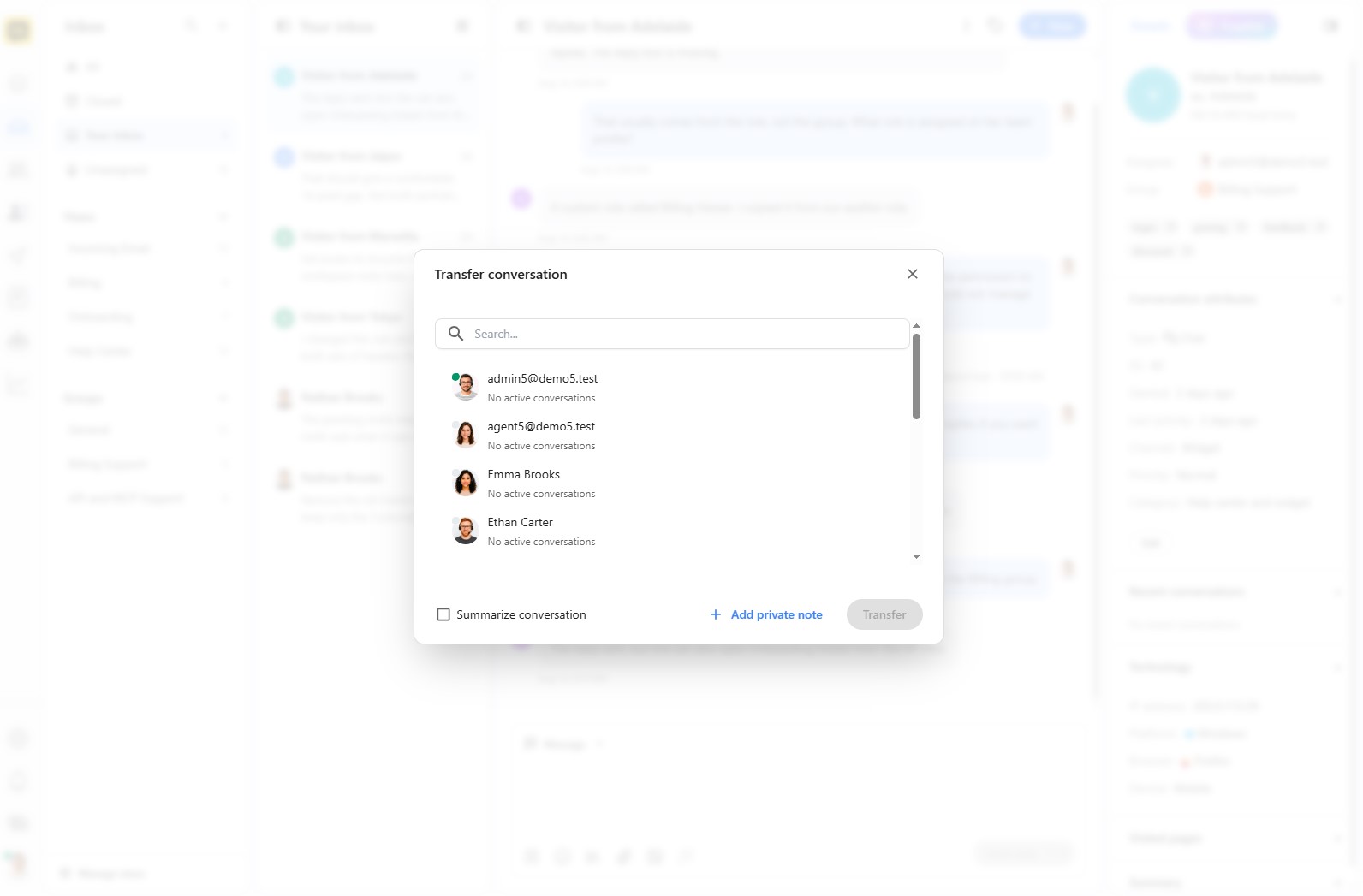
Primary Actions: Quickly Close a resolved conversation or access more options from the three-dots menu, including downloading a transcript, transferring the conversation, suspending customer or editing customer details.
Customer Details: Instantly see the customer's name, email, location, and local time.
Assignment & Tags: You can easily manage ticket ownership. Simply click on the Assignee field to assign the conversation to a specific agent, or click on the Group field to assign it to a team. You can also add tags (like
presaleorcancellation) to categorize and organize your conversations.Conversation Attributes: View key metadata like the ticket ID, category, and when it was started, as well as add custom attributes to conversation.
Customer History and Technology
Recent Conversations: View a list of past interactions with the same customer. Clicking on any past conversation opens a preview, allowing you to quickly reference previous discussions. From this preview, you can also merge the old conversation into the current one, consolidating all relevant information into a single thread.
Technology: Understand the customer's technical environment by viewing their IP address, Platform (e.g.,
Linux), Browser (e.g.,Firefox), and Device (e.g.,Mobile). This is invaluable for troubleshooting technical issues.Visited Pages: See a list of pages the customer viewed on your website before and during the conversation. This gives you incredible context about what they were trying to achieve, what they've already read, and where they might be stuck.
AI Summary: Click Generate summary to get an AI-powered, concise overview of the entire conversation, including keywords and an analysis of the overall customer sentiment. This helps agents get up to speed on long or complex tickets instantly.
Best Practices
Name views, statuses, attributes, and saved replies in plain language your whole team understands.
Avoid creating too many overlapping filters; fewer, sharper workflows are easier to maintain.
Audit old conversations and stale views on a regular schedule.