
This guide helps your team get more value from TurboHelp's Conversations tools. Use it to understand the feature, configure it correctly, and know what to check before relying on it in your daily support workflow.
At a Glance
Use this feature to keep customer conversations organized and easy to act on.
Pair it with clear statuses, tags, and ownership rules so agents always know the next step.
Review the setup regularly as your support volume and team structure change.
TurboHelp offers two distinct layouts for the agent inbox to manage customer conversations: Chat Layout and Table Layout. Understanding the differences will help you and your team choose the best view to optimize your workflow. You can switch between them at any time with a single click.
Chat Layout
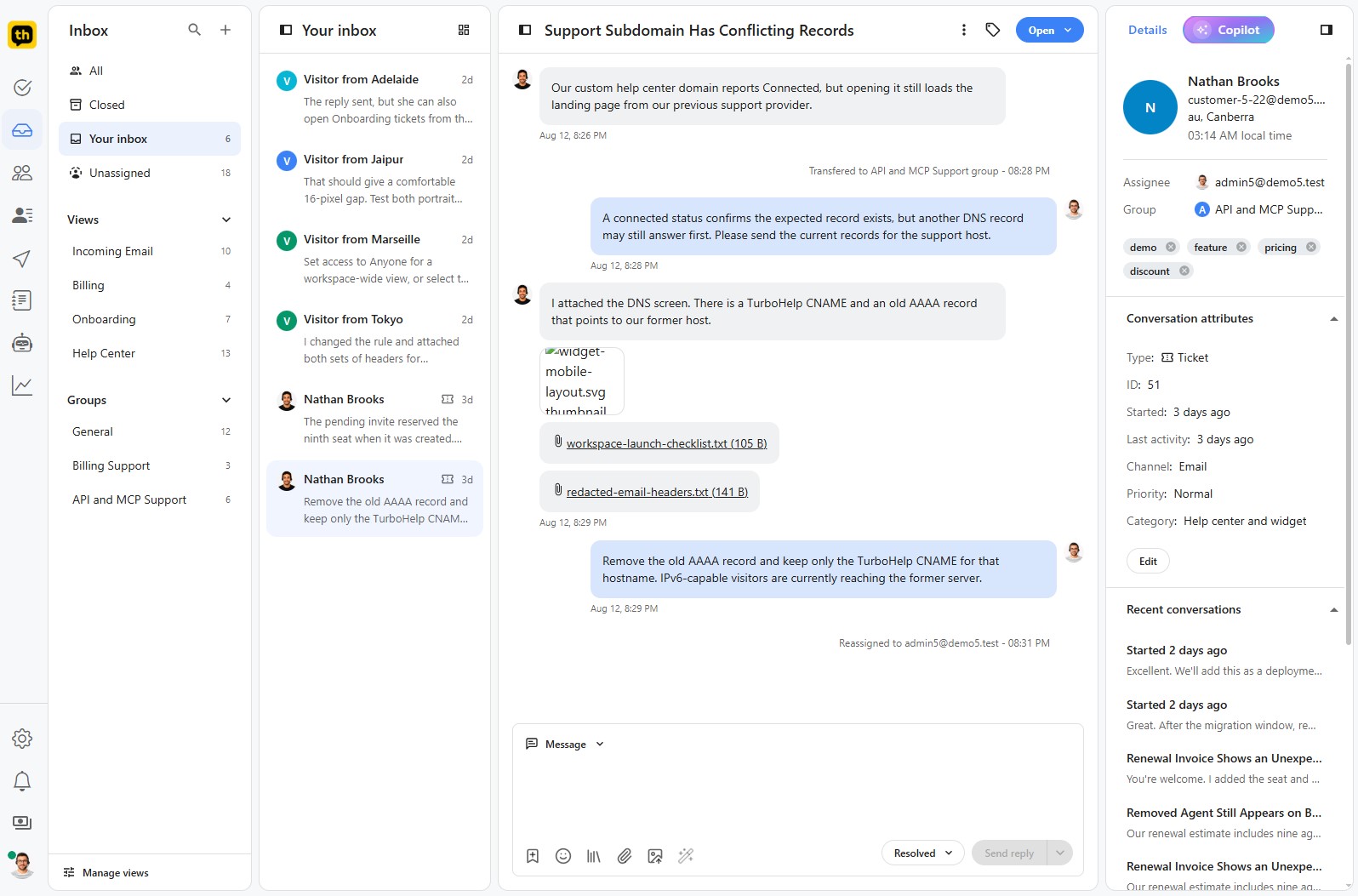
The Chat Layout provides a focused, messaging-app-style interface, perfect for real-time conversations and handling conversations one by one.
Key Features:
Three-Panel View: This layout is organized into three columns for a clear, streamlined workflow.
Conversation List (Left): A list of all your active tickets and chats, similar to the inbox of a messaging app.
Active Conversation (Center): The full history of the currently selected conversation, allowing you to scroll through messages and reply directly.
Details Panel (Right): A comprehensive overview of the customer and conversation, including contact information, custom attributes, recent conversations, and technical details.
Tip: You can hide conversation list and details panels via toggle buttons in panel headers.
Best For: This view is ideal for agents who primarily manage live chats or need to deep-dive into individual customer issues without distraction. It provides a familiar, conversational context that feels intuitive and efficient.
Table Layout
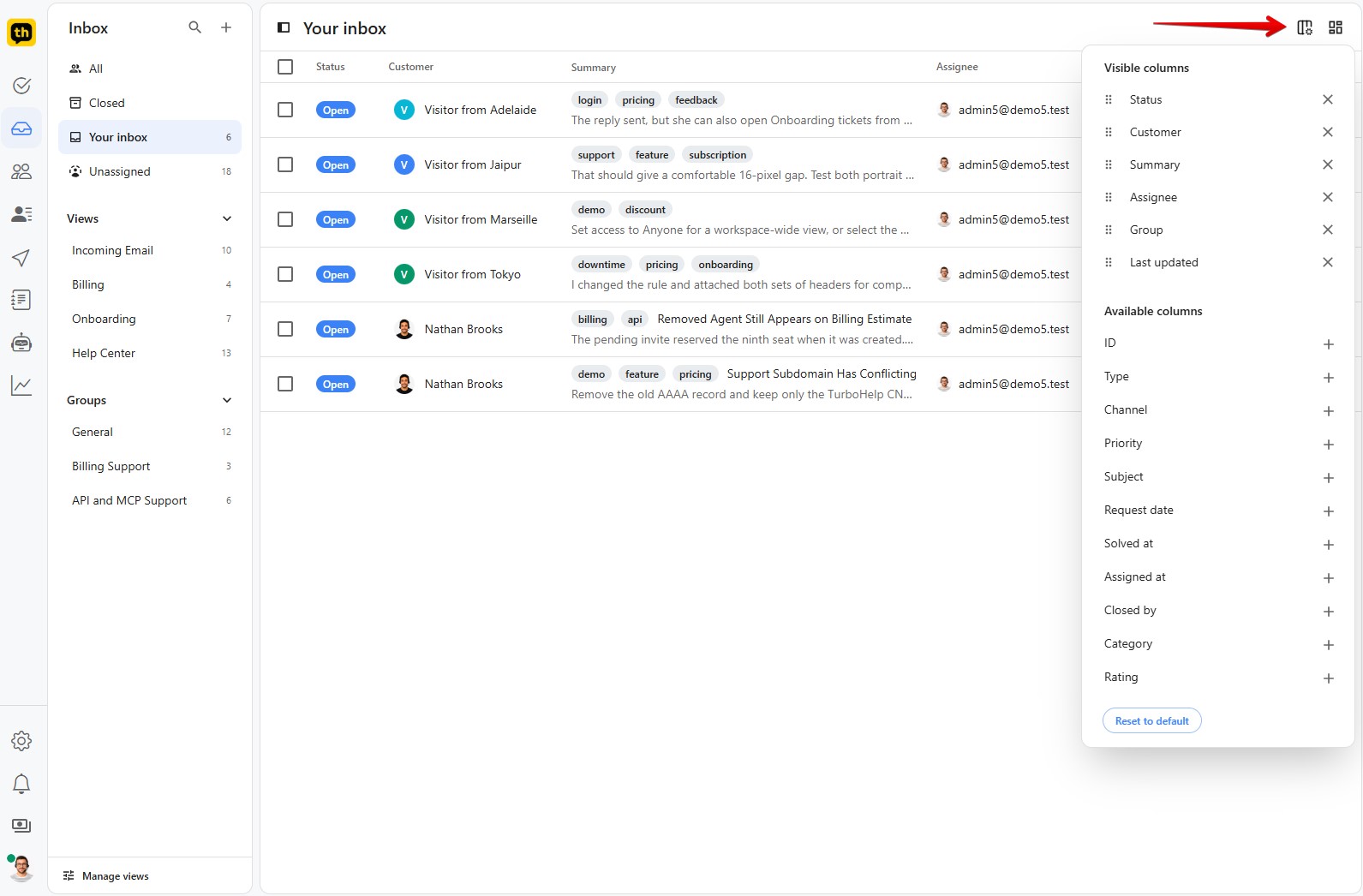
The Table Layout offers a data-rich, traditional helpdesk view that allows agents to see and manage multiple conversations simultaneously. It's designed for high-volume environments where getting a bird's-eye view of the queue is essential.
Key Features:
Customizable Grid: Displays your conversations in a powerful table format. Each row is a conversation, and each column represents a piece of data (e.g., Status, Customer, Assignee).
Column Customization: This is the standout feature of the Table Layout. You have full control over the information you see. The right-hand panel allows you to easily add or remove columns from a wide range of available data points, such as Priority, Category, Request date, and more.
Best For: This view is perfect for support managers and agents who handle a large number of tickets (email, forms, etc.). It allows for quick scanning, sorting, and prioritizing of the entire support queue at a glance.
How to Switch Layouts
You can instantly toggle between the Chat and Table layouts to suit your immediate needs. In the top-right corner of your inbox, you will find the layout switcher icons. Click the icon for the layout you wish to use.
Best Practices
Name views, statuses, attributes, and saved replies in plain language your whole team understands.
Avoid creating too many overlapping filters; fewer, sharper workflows are easier to maintain.
Audit old conversations and stale views on a regular schedule.