
This guide helps your team get more value from TurboHelp's Settings tools. Use it to understand the feature, configure it correctly, and know what to check before relying on it in your daily support workflow.
At a Glance
Use settings to shape TurboHelp around your team's support process, brand, and security needs.
Document meaningful changes so admins can understand why each option was configured.
Test customer-facing changes in a staging or low-risk environment when possible.
The SEO Tags settings page provides you with powerful tools to control how your help center pages are presented in search engine results (like Google) and when shared on social media. By customizing HTML meta tags, you can optimize your content for better visibility and engagement. 🔍
Accessing SEO Settings
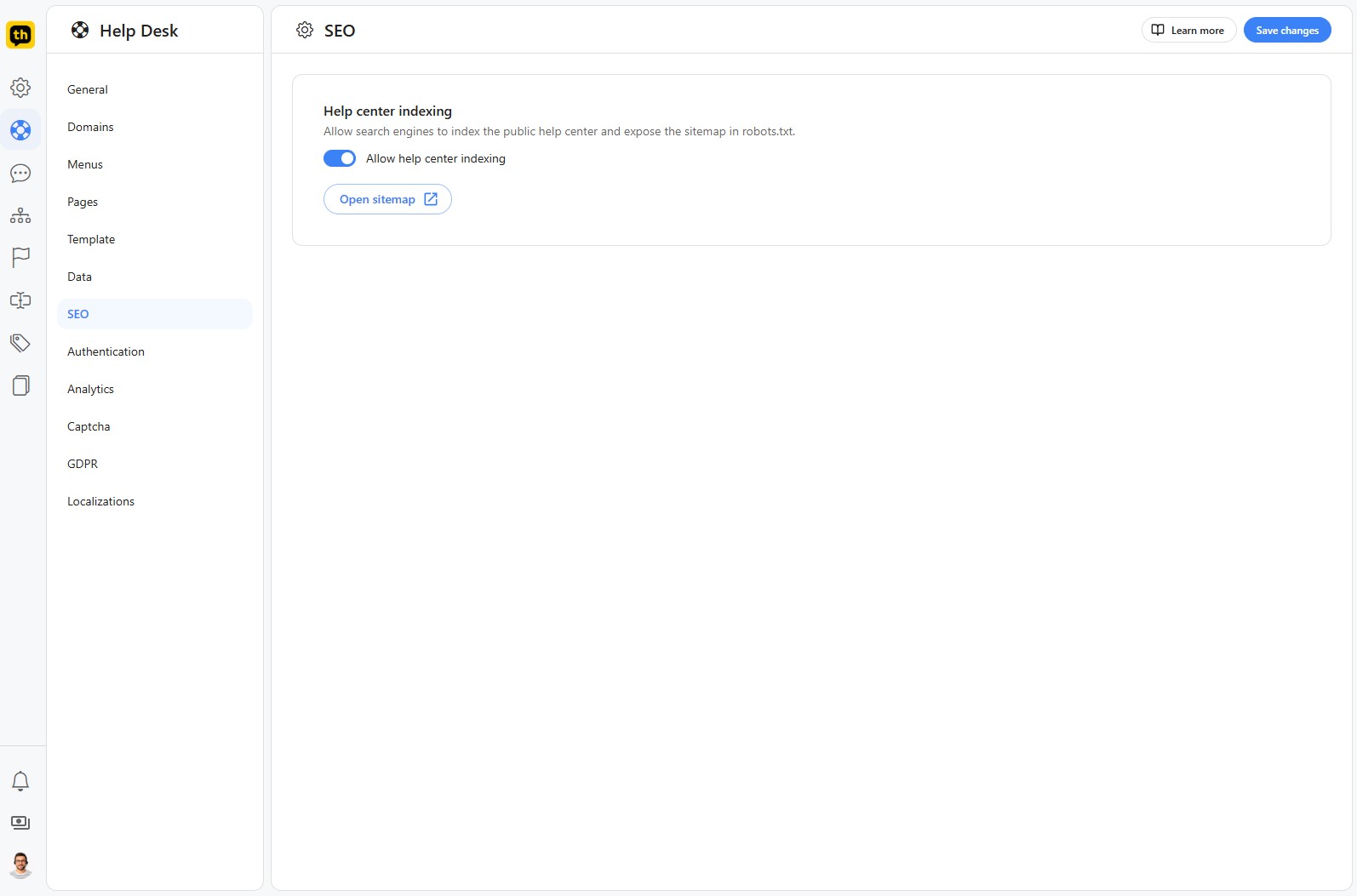
You can find the SEO configuration panel by navigating to Admin > Settings > SEO from the sidebar.
How It Works
The SEO page is built around two main components: the page selector and the code editor. This allows you to create unique SEO rules for different types of pages across your help center.
1. Select a Page Type
First, use the Page dropdown menu to choose which page template you want to edit. TurboHelp allows you to set custom SEO tags for the following page types:
Article Page: Individual knowledge base articles.
Category Page: Pages that list all articles within a category.
Custom Page: Any custom pages you have created.
Landing Page: The main homepage of your help center.
Search Page: The page that shows results for user searches.
2. Edit HTML Tags in the Editor
Once you've selected a page type, the editor below will populate with the default HTML tags for that template. You can directly add, edit, or remove tags here. This includes common and essential tags like:
: The text shown in the browser tab and as the main clickable headline in search results.: The short snippet of text that appears below the title in search results.Open Graph tags (e.g.,
): Used to control how your content appears when shared on social media platforms like Facebook.: Specifies the "preferred" version of a URL to search engines, helping to avoid duplicate content issues.
3. Use Dynamic Variables
The editor uses the powerful Laravel Blade templating engine. This allows you to insert dynamic data into your SEO tags using a simple syntax.
You'll see placeholders wrapped in double curly braces, such as {{ article['title'] }} or {{ settings['branding.site_name'] }}. These are dynamic variables that automatically pull data from your TurboHelp instance. For example, on an article page, {{ article['title'] }} is replaced with the actual title of that specific article.
This lets you create a consistent, optimized template for all pages of a certain type without having to edit each one manually.
4. Save or Reset Your Changes
Save changes: Once you are satisfied with your edits, click the Save changes button in the top-right corner to apply them.
Reset to original: If you want to revert to the default TurboHelp settings for the selected page type, click the Reset to original button. This will replace the content in the editor with the system's default code. To finalize the reset, you must then click the Save changes button to apply the default settings.
Best Practices
Change one major setting at a time and verify the result.
Keep admin-only settings limited to trusted users.
Revisit settings after product, policy, or brand changes.